4 RECORDING MANAGEMENT
4 RECORDING MANAGEMENT
4.3 Rules
4.3 Rules
• Device Action – Allows the user to select a device and define an action the device should carry out, for
example start recording (for starting the recording it is necessary that the camera is either in the recording
mode Trigger on Event or if the recording mode is set to Off, that the Monitor events checkbox is ticked –
See the Recording Modes. The function argument sets how long, in seconds, the recorded video should
be.)
• Send an e-mail – Displays a form for sending e-mail (addressee, subject, text of the e-mail). The IPCorder
supports national character sets, i.e. it is possible to use the diacritic symbols.
• Create a Variable – Allows the user to create a user variable and set its value. This might be useful for
testing the value of the variable in other rules.
• Wait – Allows the user to set a delay before another action or block is executed.
Add more actions by clicking the Add Action button.
Generally, this form allows the user to create a rule, which, if triggered, checks validity of several sets of
conditions and, depending on whether they are fulfilled or not, either does or does not carry out predefined
number of actions.
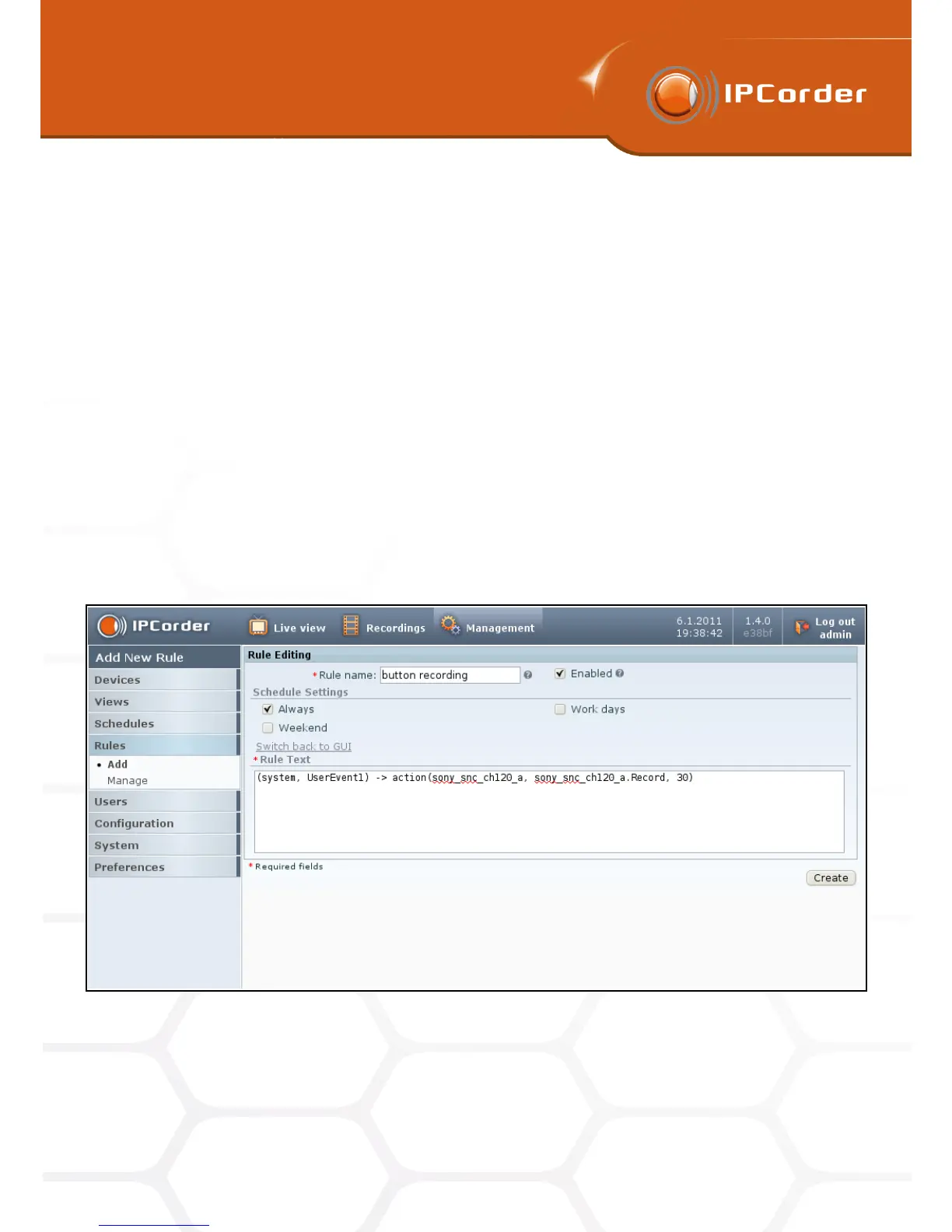
The more advanced users will appreciate the possibility to input the rules in text mode directly in the rules script
language. Switch to the text input mode by clicking the Switch into Text Input Mode link under the Schedule
Settings (Figure 29).
Figure 29: Interface for the definition of rules in text mode.
To begin with, you can see here the just created rule in its textual form. You can edit it or if need be, define a
new rule from the scratch.
38



 To Next Page