4 RECORDING MANAGEMENT
4 RECORDING MANAGEMENT
4.3 Rules
4.3 Rules
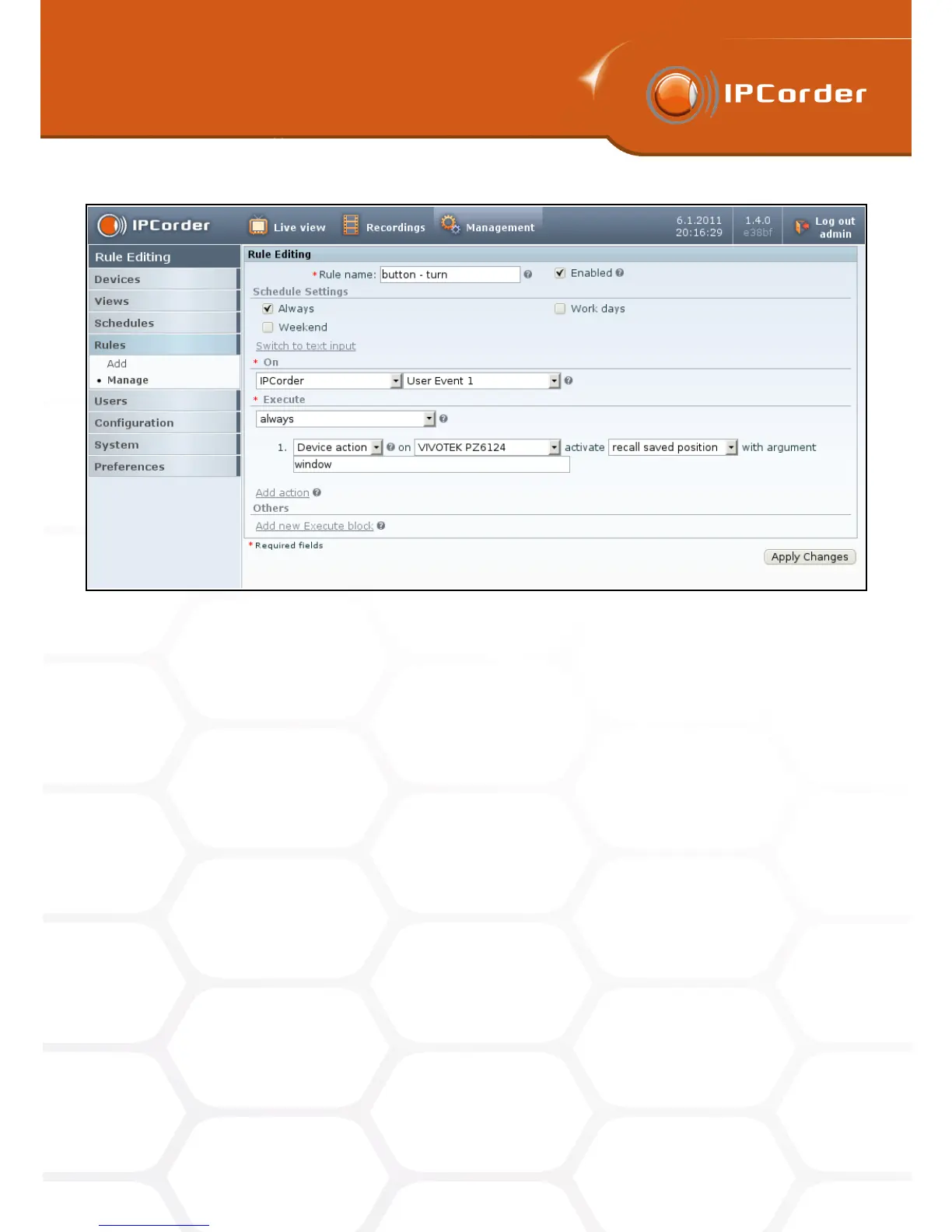
Figure 30: Rule for turn camera to preset position
Before creating such rule, check the settings of the camera in Management – Devices – Manage – Settings –
Recording. To make this rule work properly, it is necessary to switch the camera to Recording on trigger mode
or to Live view mode with active Monitor events selected. The rule that will record the 30 seconds long video
after changes of digital input can be created this way (Figure 31).
Hint: A change of digital input on one camera can for example to trigger recording on multiple devices just use
the Add action button.
Turn the camera and record with delay rule this rule is trigged by some event (in this case motion detected
by some other camera), it turns the camera in chosen direction, records the video, waits and than turns the
camera back.
As in previous example we assume to have predefined positions Default and Position1. In rule described on
the picture (Figure 32) camera detects motion, turns to the Position1, triggers the recording of the video for
30 seconds, waits for one minute (written as 60 – first 30 seconds camera records and than waits for next 30
seconds) and turns camera back to the position Default.
Switch digital input as a reaction to digital input event if a camera has digital output (or outputs) it is
possible to set its value as a reaction triggered by an input event. (Please note that outputs are usually
numbered from zero e.g. first output has number zero, a camera with a single output usually has number
zero. On the other hand devices manufactured by HWgroup often have specific numbering of outputs and
40



 To Next Page