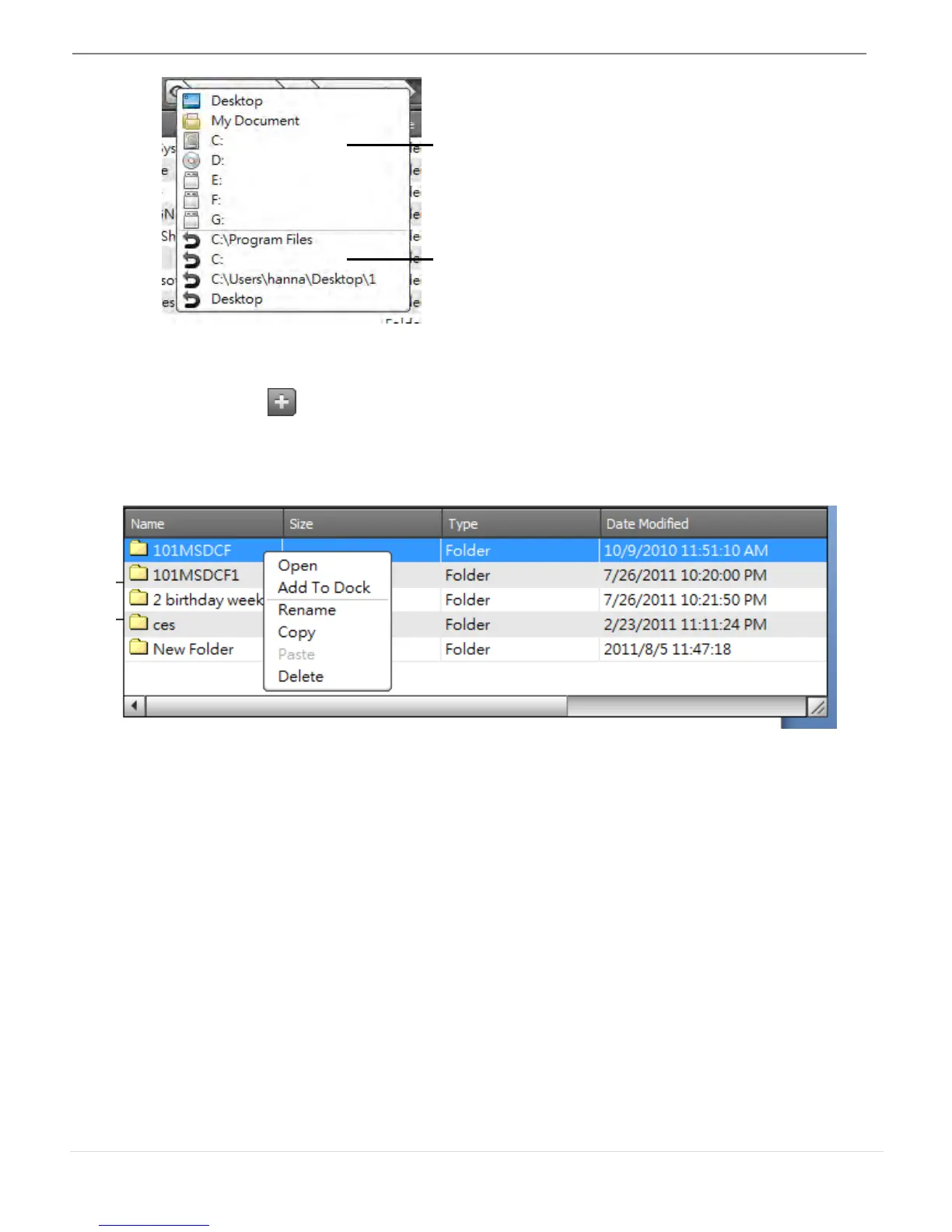
o File Destination Path
You can quick select the destination by clicking the path.
o Add Folder
Click on the icon to add a new folder and edit the file name.
C. File List Description
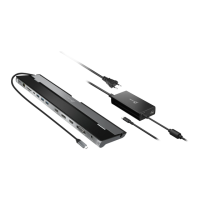
Right click on a file from the file list; the drop down menu will appear.
o Open
Right click the file to select the Open option to open the file you wish or double click
on the file to open the file faster.
Note: Some execution files, which need supported files such as graphic resources,
library, and etc., cannot be executed from the file list on the other computer.
o Add To Dock
Right click on the selected file from the file list and select “ Add To Dock” to move
the file to the Dock area. You can also drag and drop the file directly to the Dock.
o Rename
Right click on the file and select “Rename” to modify the file name.
o Copy/Paste
Right click on the file or folder and select Copy on the pull-down menu. Then right
click on the selected files in the file list to Paste the data to the destination you wish.
Note: Files cannot be pasted onto the same source and files cannot be copied and
pasted onto the same computer.
o Delete
Right click on the selected file and choose Delete on the pop-up menu.


 To Next Page