36
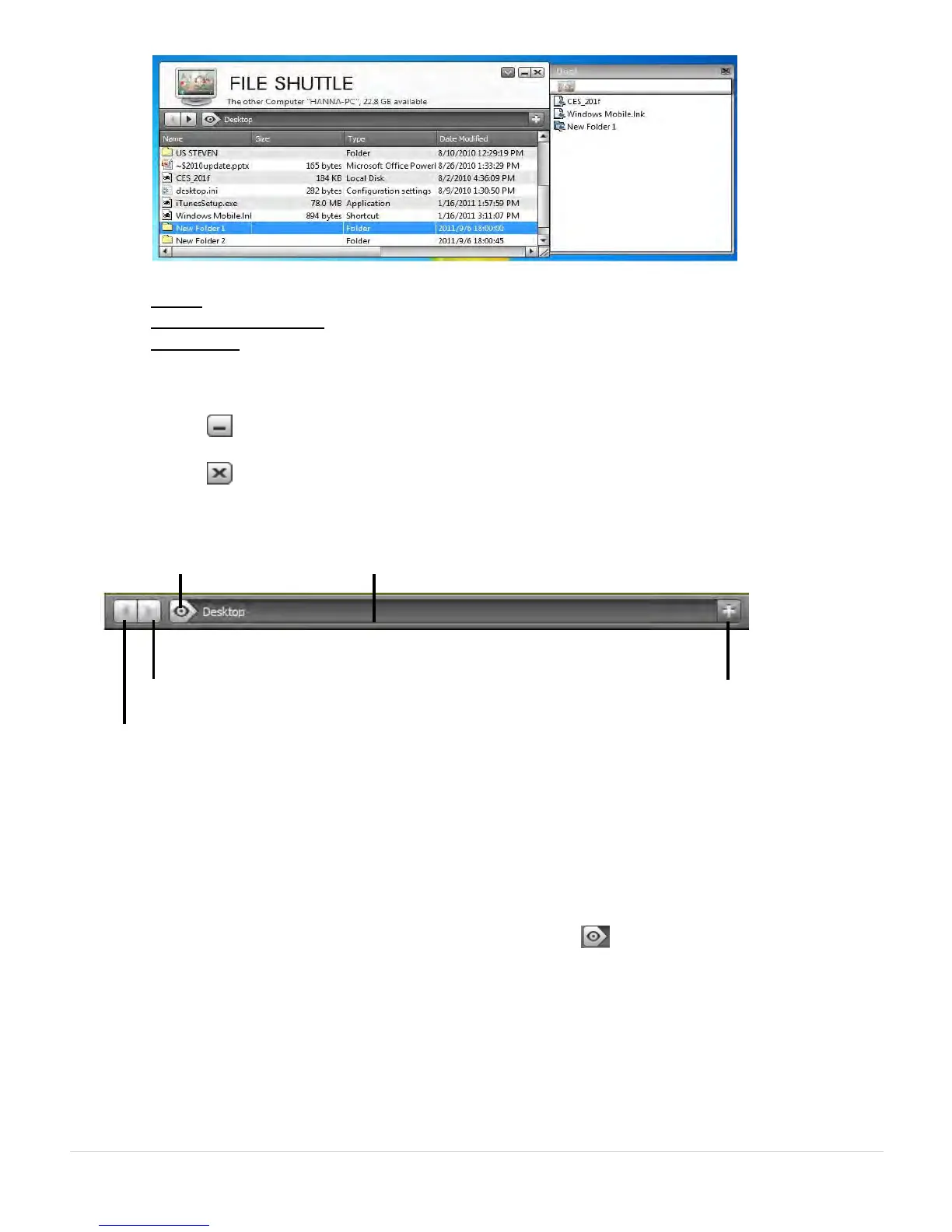
b. Right click Dock area to choose below action
Copy: Copy the selected files and Paste it to the other destination.
Remove from Dock: Use Remove from Dock to delete the selected files on the Dock.
Select All: Click Select All to select all the files on the Dock, and then copy and paste
all the files to the destination
o Minimize
Press on the top right hand corner of the Window to minimize the window.
o Exit :
Press to exit File Shuttle
B. Guider Description
o Previous Files List
Click on the previous file list to return to those files.
o Next Files List
Click on the next folder to view the next file list.
o View
A pull-down menu will drop down by clicking the icon on the guider. From here
you can quickly select the Disk item & Recent Path Item of the other computer.


 To Next Page