JB-lighting Lichtanlagen GmbH Sallersteigweg 15 D-89134 Blaustein Telefon ++49(0)7304 9617-0
- 45 -
7.2 AUTFOL / Automatic fixture activation by the Follow key
If the AUTFOL-(Autofollow) function is assigned to a cue and this cue is recalled, all fixtures stored in this
cue are activated by the Follow function and their PAN and TILT values can be directly changed in PAN
with a connected trackball. Simultaneously, all other parameters are frozen.
7.2.1 Entering the AUTFOL function
To activate the Follow function, consecutively press the Edit key in the Combi section and the cue key, on
which the cue to be edited is stored.
Then press the softkey AUTFOL. The activated key will be displayed inverted. Press the Edit key again to
leave the Edit menu.
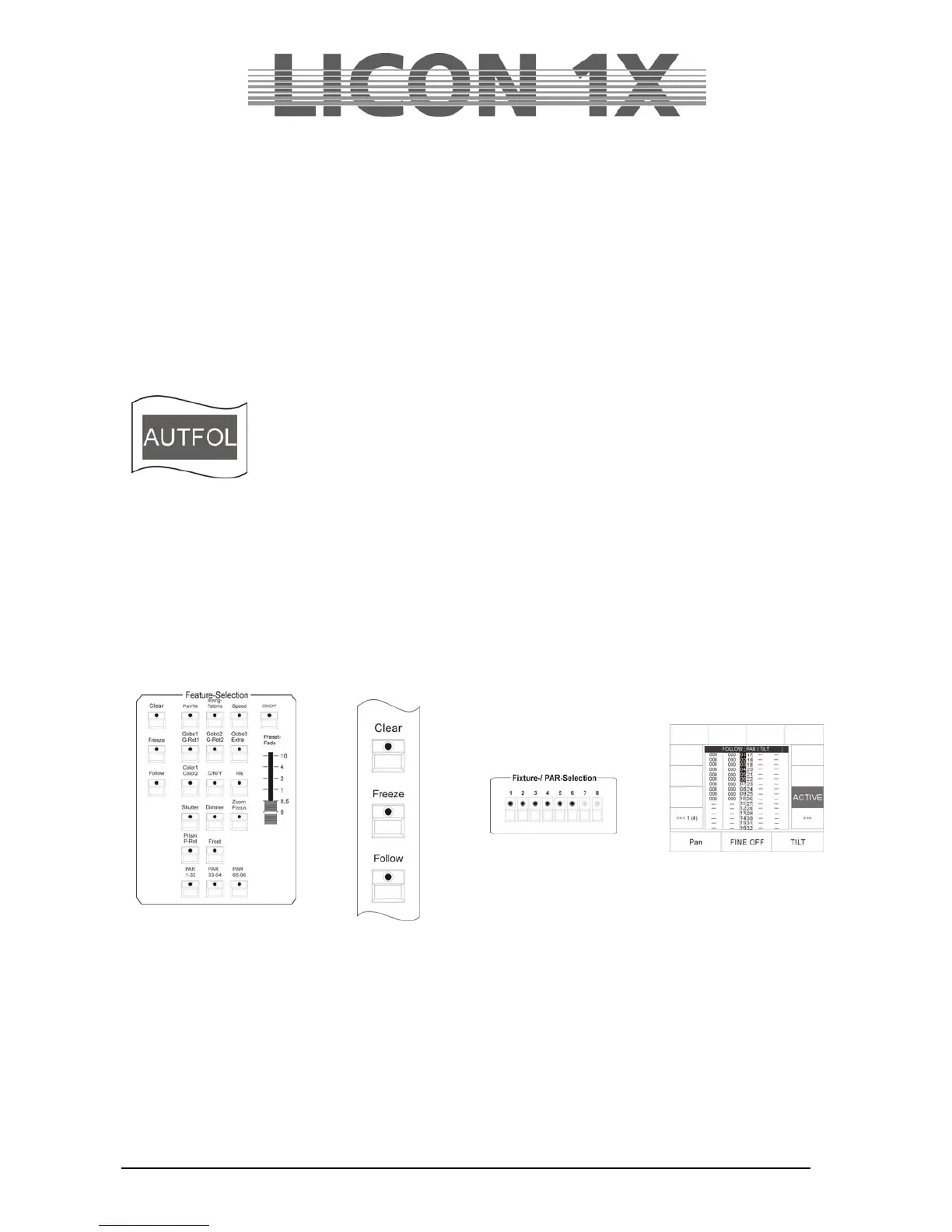
Illustration: the softkey AUTFOL displayed inverted
7.2.2 Working with the AUTFOL function
When a cue with assigned Autfol function is activated, all PAN and TILT channels of every fixture stored
in this cue are automatically activated on a connected tracking ball and can be moved.
All other parameters of these fixtures are frozen and can be modified exclusivley by presets or with the
encoder. If another cue is recalled, in which the same fixtures are active, the frozen parameters remain
unchanged.
In order to visually check, which fixtures are active in the particular cue, proceed as follows:
Press one of the keys in the Feature Selection block. Then press and hold the Follow key in the Feature
Selection section. The LEDs that are now lit in the Fixture Selection block indicate, which fixtures are
stored in the active cue. At the same time, the function field ACTIVE is displayed inverted.
+ + +
7.2.3 Deactivating the AUTFOL function
To deactivate the assigned Autfol function in an active cue, press a key of the Feature Selection first.
Then press and hold the Follow key in the Feature Selection section, the inverted function field ACTIVE
will appear on the display. Press the assigned softkey and the inversion as well as the Follow function will
be deactivated.


 To Next Page