GB
8
LISTENING TO YOUR iPod/iPhone
Playing iPhone / iPod music
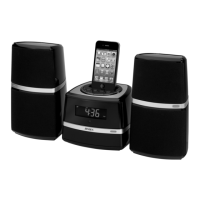
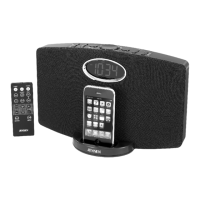
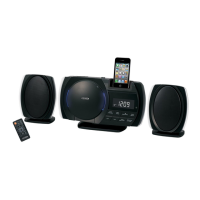
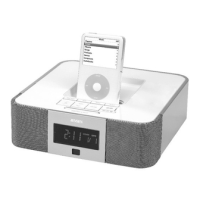
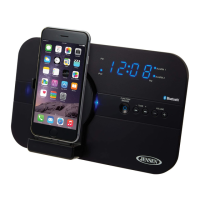
1. Use the iPod adaptor included with your iPod (if needed) and insert it into the docking area. No adaptor
required if you use an iPhone. Your iPod/iPhone can now be inserted into the docking bay by placing
the connector on the bottom of the iPhone/iPod onto the connector in the docking station.
Note: Please be careful when seating the iPhone/iPod into the docking bay to avoid damaging the
30-pin connector on the iPhone/iPod or in the docking system.
2. Tap the
/ FUNCTION button on main unit or button on remote control to turn on the unit, the
power status LED indicator lights steadily.
3. Tap the / FUNCTION button on main unit or FUNC button on remote control to select iPod
mode, the indicator “iPod” displays.
4. Press the button to start iPhone/iPod music playback. Press it again to pause.
5. Adjust the sound level by pressing the VOLUME Up (+) / Down (-) button.
Note: 1.The volume level cannotbe adjusted using the volume control on your iPhone/iPod after being docked.
2.The iPod/iPhone will charge in all modes.
6. To remove the iPod/iPhone from the unit, press and hold the button for three seconds to
switch off the device and then gently remove it from the docking connector.
7. Press and hold the / FUNCTION button on main unit or tap button on the remote control to
turn unit into standby mode after listenning. The power status LED lights off.
iPhone / iPod playback control
— Press the button to pause or resume the iPhone/iPod playback.
— Press the / button to skip to the next or previous song.
— Press and hold the / button for fast-forwarding or fast-rewinding during playback.
iPod/iPhone control function keys (using remote control)
- To set iPod music play-mode in random, press the SHUFFLE button.
- To set iPod music in repeat play-mode, press the REPEAT button.
- To mute the volume, press the MUTE button. Press the MUTE button again to resume
listening to the music.
- To access your iPod / iPhone menu, press the MENU button.
- To navigate and select your iPod/iPhone menu, tap the Up
/ Down / ENTER buttons as
from your iPod /iPhone to highlight and select desired items.
Note: 1. The iPod Menu Control function will work with most iPod touch/iPhone models in iPod mode.
Please make sure your iPod/iPhone is in Music or iPod mode. The function will NOT work if
the iPod/iPhone is on the MAIN or LOCKED screen.
2. The iPod menu navigating function of remote control will work on most iPhone
or iPod models except iPod nano 6th gen.
WATCH VIDEOS ON YOUR iPod/iPhone
The default setting of this unit is to play back video on the screen of your iPod, iPod touch and iPhone.
However, if your iPod has TV out ON/OFF selection, then you may need to set TV out of your iPod to
OFF manually.
1. Dock your iPod/iPhone carefully and securely onto the Docking Connector.
2. Tap the
button on the main unit or remote control to turn on the unit. Press the FUNCTION
(FUNC) button to select iPod mode.
3. Access the video menu of your iPod/iPhone and select the video clip you want to play.
4. Press the Enter button of your iPod/iPhone, the video will start play back on the LCD screen of
your iPod/iPhone.
5. After selecting the video you wish to view and it starts to play, press the
button from the main
unit or remote control to Play/Pause the video.
6. Tap the Button to advance to end of the current clip. Press and hold it during playback for fast
forward search within the clip.
ES
8
PARA ESCUCHAR SU iPod/iPhone
Reproducción de música desde su iPhone / iPod
1. Utilice el adaptador de iPod incluido con su iPod (si lo necesita), e insértelo en el área de
acoplamiento. No necesitará adaptador si utiliza un iPhone. Ahora puede insertar su iPod/iPhone
en la bahía de acoplamiento colocando del conector de la parte inferior del iPhone/iPod en el
conector de la estación de acoplamiento.
Nota: Por favor tenga mucho cuidado al colocar el iPhone/iPod en la bahía de acoplamiento para
evitar causar daños al conector de 30 pines del iPhone/iPhod, o del sistema de acoplamiento.
2. Dé un ligero golpecito al botón de / FUNCIÓN en la unidad principal o al botón en el control
remoto para encender la unidad, la luz del indicador LED se iluminará y quedará fija.
3. Dé un ligero golpecito al botón de / FUNCIÓN en la unidad principal o al botón de FUNCIÓN
del control remoto para seleccionar modalidad de iPod, aparecerá en pantalla el indicador “iPod”.
4. Oprima el botón para iniciar la reproducción de música de iPhone/iPod. Oprímalo de nuevo
para hacer una pausa.
5. Ajuste el nivel del sonido oprimiendo el botón de Subir (+) / Bajar (-) VOLUMEN.
Nota: 1. No se podrá ajustar el nivel de volumen usando el control de volumen de su iPhone/iPod
después de que lo haya acoplado.
2. En cualquiera de las modalidades el iPod/iPhone estará adquiriendo carga.
6. Para retirar el iPod/iPhone de la unidad, oprima y sostenga el botón
durante tres segundos
para apagar el dispositivo y luego quítelo cuidadosamente del conector de acoplamiento
7. Oprima y sostenga el botón de / FUNCIÓN en la unidad principal o dé un ligero golpecito al
botón del control remoto para colocar la unidad en modalidad de espera después de escuchar.
La luz LED indicadora de suministro de corriente eléctrica se apaga.
Control de reproducción del iPhone / iPod
— Oprima el botón para pausar o continuar la reproducción del iPhone/iPod.
— Oprima el botón / para saltar a la melodía siguiente o anterior.
— Oprima y sostenga el botón / avanzar o retroceder rápidamente durante la reproducción.
Botones de control de funciones del iPod/iPhone (usando el control remoto)
- Para elegir la modalidad al azar durante la reproducción de música del iPod, oprima el botón
REPRODUCCIÓN ALEATORIA.
- Para elegir la modalidad de repetición durante la reproducción de música del iPod, oprima el botón REPETIR.
- Para silenciar el volumen, oprima el botón SILENCIO. Oprima de nuevo el botón SILENCIO para
volver a escuchar la música.
- Para tener acceso al menú de su iPod / iPhone, oprima el botón MENÚ.
- Para navegar y seleccionar el menú de su iPod/iPhone, dé un ligero golpecito a los botones Subir
/ Bajar / ACEPTAR como lo hace en su iPod/iPhone para resaltar y seleccionar los
elementos deseados.
Nota:1. La función de control del menú del iPod funciona con la mayoría de modelos de iPod
touch/iPhone en la modalidad de iPod. Por favor asegúrese que su iPod/iPhone se
encuentre en modalidad de Música o iPod. La función NO trabajará si el iPod/iPhone se
encuentra en la pantalla PRINCIPAL osiestá BLOQUEADO.
2. El atributo de navegación del menú del iPod en el control remoto funcionará en la mayoría
de modelos de iPhone y de iPod, excepto iPod nano 6a gen.
VEA VIDEOS EN SU iPod/iPhone
La opción pre-configurada de esta unidad es la reproducción de videos en la pantalla de su iPod, iPod
touch y iPhone. Sin embargo, si su iPod tiene selección para ENCENDIDO/APAGADO de salida de
TV, podría necesitar configurar manualmente a APAGADA la salida de TV de su iPod.
1. Acople firme pero cuidadosamente su iPod/iPhone al conector de acoplamiento.
2. Dé un ligero golpecito al botón
en la unidad principal o en el control remoto para encender la
unidad. Oprima el botón de FUNCIÓN (FUNC) para seleccionar modalidad de iPod
3. Ingrese al menú de video de su iPod/iPhone y seleccione el video clip que quiera reproducir.
4. Oprima el botón Aceptar en su iPod/iPhone, para comenzar a reproducir el video en la pantalla
LCD de su iPod/iPhone.
W166-R(JiMS-252i)_GB_ES IB.indd8 18 - 829 2012-2-28 8:36
size:148x210mm,80gms book paper,BK+BK.


 To Next Page
 Loading...