• Baud rate—9600
• Flow control—None
• Data—8
• Parity—None
• Stop bits—1
• DCD state—Disregard
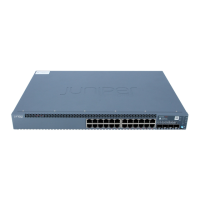
2. Connect the console port on the EX2300 switch to a laptop or desktop PC using the Ethernet cable
and the RJ-45 to DB-9 serial port adapter (not provided). If your laptop or desktop PC doesn't have
a serial port, use a serial-to-USB adapter (not provided).
3. At the Junos OS login prompt, type root to log in. You don't need to enter a password. If the
soware boots before you connect your laptop or desktop PC to the console port, you might need
to press the Enter key for the prompt to appear.
NOTE: EX switches running current Junos soware are enabled for Zero Touch Provisioning
(ZTP). However, when you congure an EX switch for the very rst me, you’ll need to
disable ZTP. We show you how to do that here. If you see any ZTP-related messages on the
console, just ignore them.
FreeBSD/arm (w) (ttyu0):
login: root
4. Start the CLI.
root@:RE:0% cli
{master:0} root>
5. Enter conguraon mode.
{master:0} root> configure
{master:0}[edit]
root#
8



 To Next Page