Step 1: Begin
IN THIS SECTION
Meet the EX2300 Line of Ethernet Switches | 1
Install the EX2300 in a Rack | 3
Rack It! | 4
Power On | 5
In this guide, we provide a simple, three-step path, to quickly get you up and running with your new
EX2300. We’ve simplied and shortened the installaon and conguraon steps, and included how-to
videos. You’ll learn how to install an AC-powered EX2300 in a rack, power it up, and congure basic
sengs.
NOTE: Are you interested in geng hands-on experience with the topics and operaons covered
in this guide? Visit Juniper Networks Virtual Labs and reserve your free sandbox today! You’ll nd
the Junos Day One Experience sandbox in the stand alone category. EX switches are not
virtualized. In the demonstraon, focus on the virtual QFX device. Both the EX and QFX
switches are congured with the same Junos commands.
Meet the EX2300 Line of Ethernet Switches
The Juniper Networks
®
EX2300 line of Ethernet switches provide a exible, high-performance soluon
for supporng today’s converged network access deployments.
You can interconnect up to four EX2300 switches to form a Virtual Chassis, enabling these switches to
be managed as a single device.
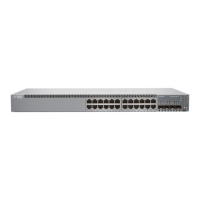
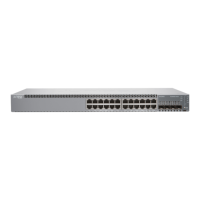
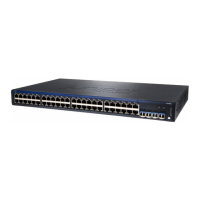
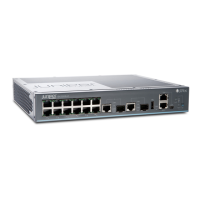
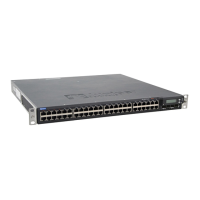
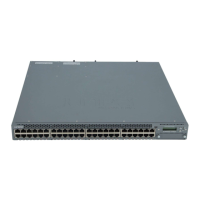
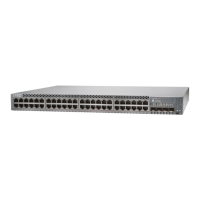
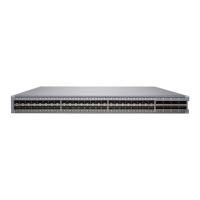
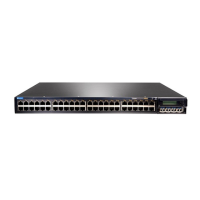
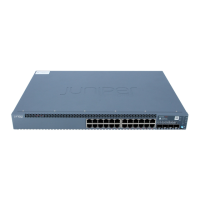
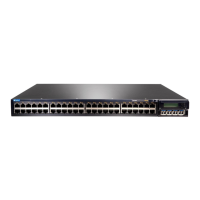
The EX2300 switches are available in 12-port, 24-port and 48-port models with AC power supplies.
NOTE: The EX2300-24T-DC switch is DC-powered.
1



 To Next Page