• Stop bits—1
• DCD state—Disregard
You will need:
• One USB cable with USB-C connectors at both ends—not provided.
• (If your laptop or desktop PC does not have a USB-C port) One USB-A to USB-C converter cable—
not provided.
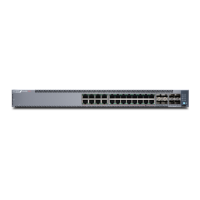
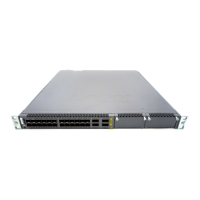
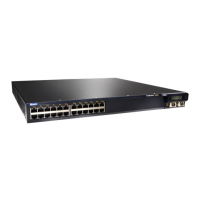
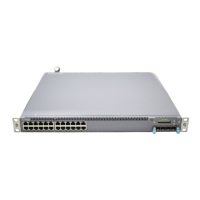
EX4400 switches have two console ports:
• An RJ-45 console port on the rear panel that accepts a cable with an RJ-45 connector.
• A USB-C console port on the front panel that accepts a USB cable with a USB-C connector.
You can log in to the switch and congure and manage the switch by using either of the console ports.
The RJ-45 console port is enabled by default. However, you must congure the USB-C console port
before you can use it to connect to the switch.
In this topic, you learn how to connect EX4400 switches to the management console by using the USB-
C console port.
To connect the switch to the console by using the USB-C console port:
1. Connect the host machine to the device directly by using the acve console port or remotely by
using the management interface.
2. Connect one end of the USB cable to the USB-C or USB-A port your PC or laptop.
3. Connect the other end of the USB cable to the USB-C console port on the front panel switch.
4. Use the set system ports auxiliary type ansi conguraon command to enable logging in to the switch
by using the USB-C console port.
5. Use the request system boot-console auxiliary command to see the boot logs on the console connected
to the USB-C port.
Note that only the Junos OS boot logs will be visible on the USB Type-C console.
6. Reboot the switch. The boot logs and the login prompt appear on the console connected to the USB-
C port.
171




 To Next Page