Q> Quit
R> Redraw Menu
Choice [1-8,QR]:
19. Enter 6 to Expand VM drive size.
Junos Space displays the prompt to expand VM (virtual appliance) drive size, as shown
in the following example.
Choice [1-8,QR]: 6
This process will scan this node for additional drive space that you may have added.
During this process, performance on this node may be significantly slowed.
Continue? [y/n]
20. Enter y to start a scan for the 40 GB of additional drive space that you added when
you deployed the virtual appliance.
21. Enter the admin password when prompted.
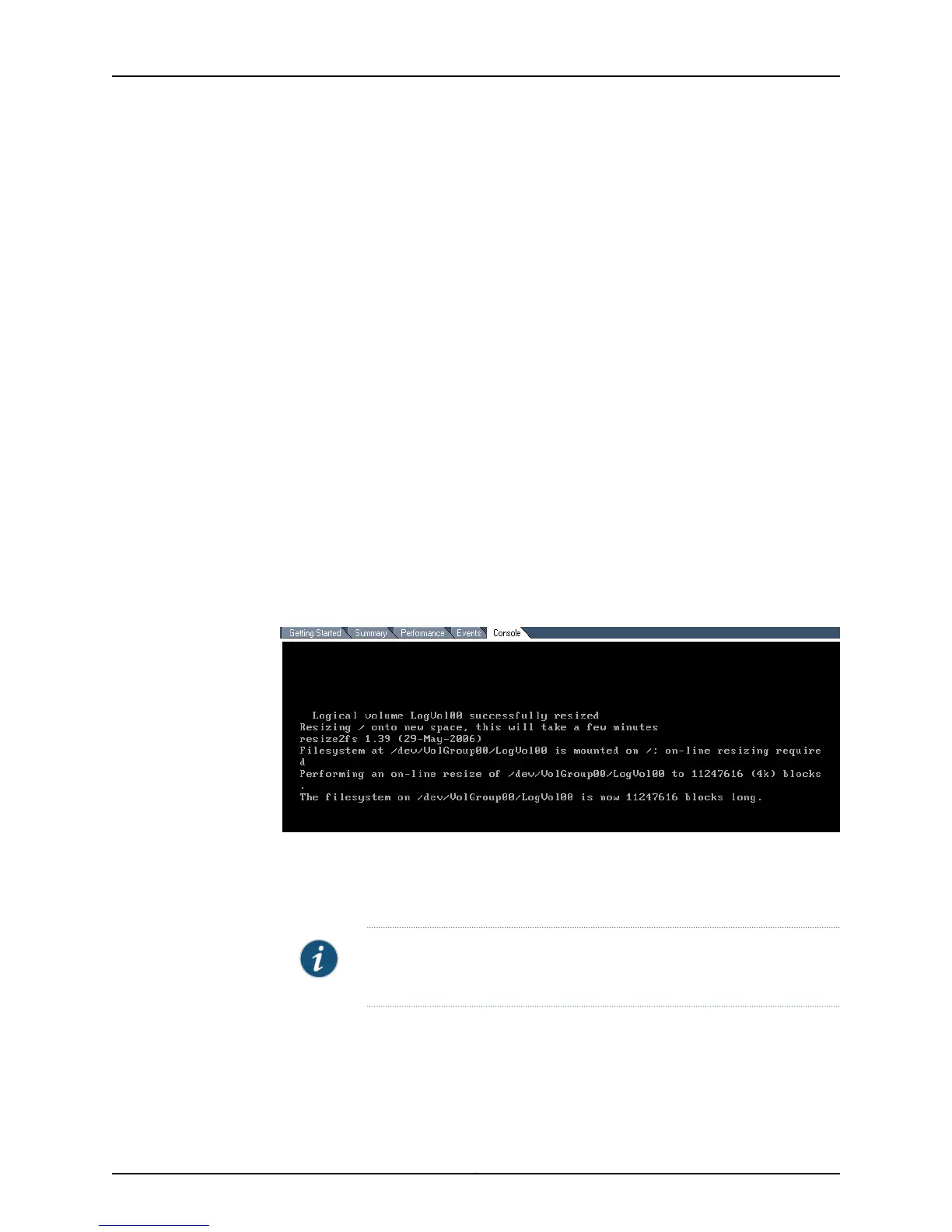
Junos Space starts a scan for the 40 GB of additional drive space that you added
when you deployed the virtual appliance. When the scan completes, Junos Space
displays the results to verify that the file system size was increased to include the new
logical volume. The following example shows the results of a scan for additional drive
space.
The Junos Space Settings Menu is displayed.
22. Enter Q to exit the Junos Space Settings Menu.
The configuration of the Junos Space Virtual Appliance is now complete.
NOTE: To log in to Junos Space from a Web browser, enter super as the
default user name and juniper123 as the password.
Copyright © 2010, Juniper Networks, Inc.22
Junos Space Virtual Appliance Installation Guide



 To Next Page