MARKING PLAYBACK
0
The scenes marked while recording the video and the scoring scenes
recorded in the game recording mode (by using the smartphone
application) can be searched.
0
Switch to the mark playback mode by tapping “MARK PLAY” on the video
playback screen.
1
Press the L button to select the playback mode.
.
0
Check if the playback mode is A.
0
If the mode is B still image, tap B on the playback screen to display
the mode switching screen.
Tap A to switch the mode to video. (You can also use the A/B button
on this unit.)
2
Tap “MARK PLAY” to open the mark playback mode.
.
3
In the thumbnail file which lists videos with marks, tap the video to play
back.
.
0
List of recorded game is displayed when “GAME” is selected.
“ GAME PLAYBACK ” (A p. 57)
0
“EDIT INDEX MARKING” screen is displayed when “EDIT” is
selected.
“ EDIT INDEX MARKING ” (A p. 58)
4
Marking playback starts.
.
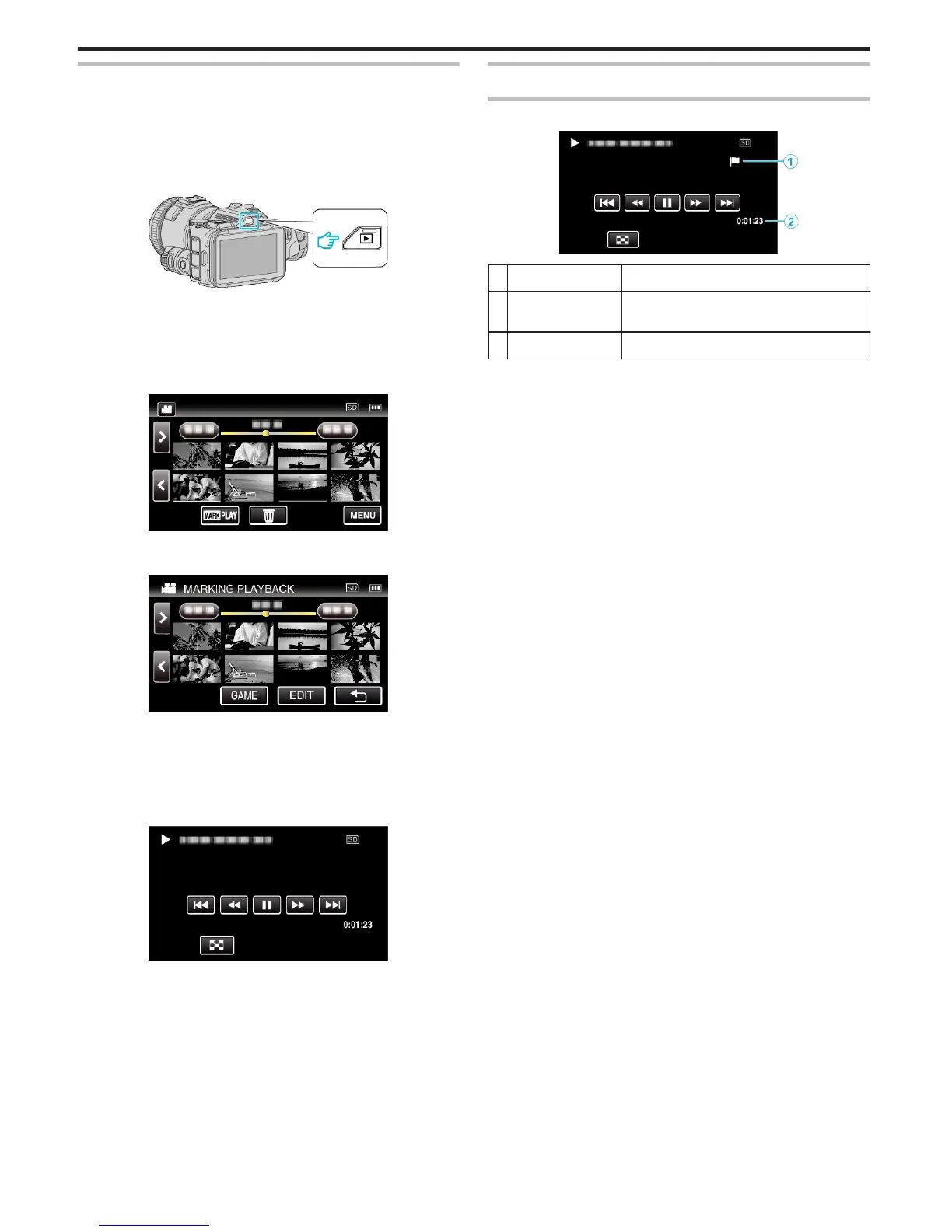
Indications during the Marking Playback
During the Normal Marking Playback
.
Display Description
A
Mark Icon Indicates that the current scene is marked.
There are 3 types of icons.
B
Elapsed Time Displayed the playback time of the video.
Playback
56



 To Next Page
 Loading...