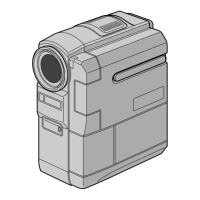
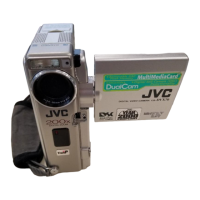
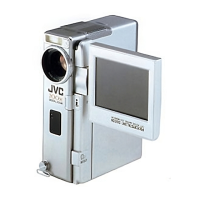
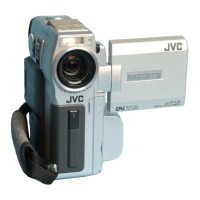
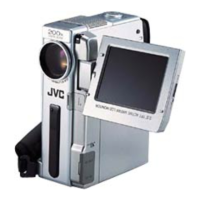
How to display time code on JVC GR-DVX707 Camcorder?
- JJessica WheelerSep 10, 2025
If the time code does not appear on your JVC Camcorder, it might be because “TIME CODE” is set to “OFF”. In that case, set “TIME CODE” to “ON”.

How to display time code on JVC GR-DVX707 Camcorder?
If the time code does not appear on your JVC Camcorder, it might be because “TIME CODE” is set to “OFF”. In that case, set “TIME CODE” to “ON”.
How to fix “SET DATE/TIME!” message on JVC GR-DVX707?
If “SET DATE/TIME!” appears on your JVC Camcorder, it means the built-in clock’s rechargeable lithium battery is discharged. Connect the camcorder to an AC outlet using the AC Adapter for over 24 hours to charge the clock’s lithium battery.
What does error E01, E02, or E06 mean on a JVC GR-DVX707 Camcorder?
If an error indication (E01, E02 or E06) appears on your JVC Camcorder, it indicates a malfunction. Remove the power supply (battery pack, etc.) and wait a few minutes for the indication to clear. When it does, you can resume using the camcorder.
What does error E03 or E04 mean on a JVC GR-DVX707?
If an error indication (E03 or E04) appears on your JVC Camcorder, it indicates a malfunction. Eject the cassette once and re-insert it, then check if the indication clears. When it does, you can resume using the camcorder.
| Image Stabilizer | Electronic |
|---|---|
| Microphone Operation Mode | Stereo |
| Viewfinder | Color |
| Still Image Format | JPEG |
| Recording Media | Mini DV |
| Image Sensor | CCD |
| Optical Sensor Size | 1/4 inch |
| Focus Adjustment | Automatic, manual |
| Shooting Modes | Auto, Manual |
| White Balance | Auto, Manual, Presets |
| White Balance Presets | Indoor, Outdoor |
| Special Effects | Sepia, Black & White, Art |
| Connector Type | Headphones, microphone, S-Video output, composite video/audio output |
| Included Accessories | AC Adapter, A/V Cable |
| Video Recording Format | Mini DV |
| Interface | IEEE 1394 |
Details on using AC adapter and battery packs for camcorder power, including charging procedures.
Setting the camcorder's power switch for different operation modes like recording or playback.
Step-by-step guide for loading and unloading video cassettes.
Instructions for loading and unloading memory cards for digital still camera features.
Steps to start and stop video recording, including tape remaining time indicators.
How to play back video, pause, search, and play frame by frame.
Connecting the camcorder to a TV or VCR for playback using various cables.
How to take still photos using the camcorder's digital still camera mode.
Viewing stored still images, including normal, auto, and index playback.
How to navigate and change camcorder settings using the on-screen menu system.
Transferring still images to a PC using USB or DV cable connections.
Guide to diagnosing and solving common problems with the camcorder's power and video functions.
Important safety precautions for batteries, cassettes, memory cards, and handling the unit.
Explanation of indicators displayed on the LCD monitor/viewfinder during video recording.
Explanation of indicators displayed on the LCD monitor/viewfinder during DSC recording.
Explanation of indicators displayed on the LCD monitor/viewfinder during video and DSC playback.
Information on error messages and warning indications, and their corrective actions.
Loading...