SettingsSettings
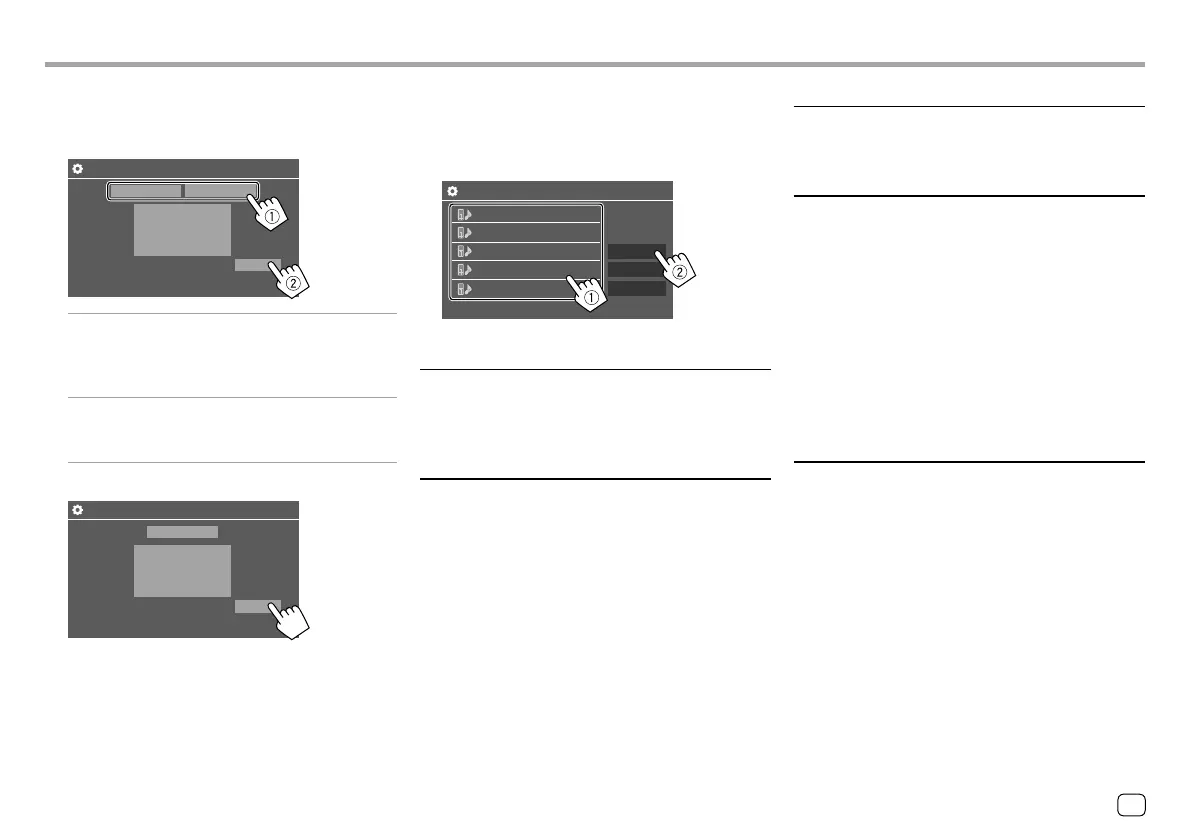
3 When selecting [Bluetooth] as the
connection method: Select the device (
1),
then press [OK] (
2) to connect.
• If the device is already connected, skip step 1.
Device Name 1
Device Name 5
Device Name 4
Device Name 3
Device Name 2
Remove
Connection
OK
Paired Device List
<Bluetooth Setup>
Configure settings for using a Bluetooth device, such
as connection and other general operations. For
details, see “Bluetooth settings” on page 39.
<Maestro Setup>
(Only for KW-V340BT)
Get information, and change the settings for using the
ADS adapter.
<Beep>
• ON (Initial): Activates the key-touch tone.
• OFF: Deactivates the key-touch tone.
<SETUP Memory>
Memorize, recall, or clear the settings you have made.
• The memorized settings are kept even when the unit
is reset.
Touch [Yes] to display the setting screen, then select
an operation:
• Recall: Recalls the memorized settings.
• Memory: Memorizes the current settings.
• Clear: Clears the currently memorized settings.
• Cancel: Cancels.
A confirmation message appears. Touch [Yes].
<DivX(R) VOD>
(Only for KW-V240BT Region 4)
This unit has its own Registration Code. Once you
have played back a file with the Registration Code
recorded, this unit’s Registration Code is overwritten
for copyright protection.
• Touch [Enter] to display the information.
• To return to the previous screen, touch [OK].
2 Select the connection method (1), then
confirm the selection ([OK] or [Next]) (
2).
If [iPod/iPhone] is selected in step 1:
Smartphone Setup
USB 1 Wire Bluetooth
OK
[USB 1 Wire] Select this when the device is
connected via the USB input
terminal (on the monitor panel or
cable from the rear panel).
[Bluetooth] Select this when the device is
connected via Bluetooth. (Go to
step 3.)
If [Android/Other] is selected in step 1:
Smartphone Setup
Bluetooth
Next
The <Paired Device List> screen appears. Go to
step 3.
47
ENGLISH
ENKW-V2018STKR.indb47ENKW-V2018STKR.indb47 2017/05/259:042017/05/259:04


 To Next Page