Enter Master mode
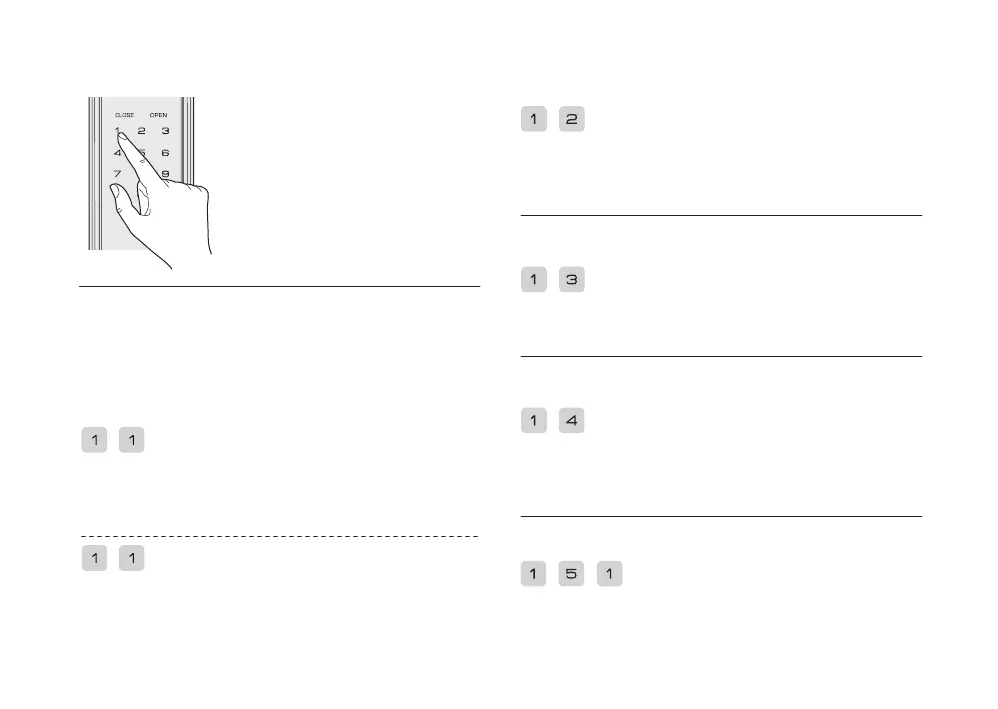
1. Touch the keypad with the palm to wake up
the keypad, the keyboard light will light up;
2. Double press the * key, then enter the master
PIN code, press the # key to confirm
3. Voice prompt: The system has entered master
mode
Note:
If the master PIN code is the initial password,
users need to change the master PIN code
first before other operations.
Press 1 to enter user settings, then press 2 to enter adding
one-time PIN code, enter a new PIN code, press # to confirm,
enter PIN code again, press # to confirm, voice prompt: Setup
successful.
In Master mode
Add One-time PIN code
Press 1 to enter user settings, then press 3 to enter adding
master fingerprint, enter a new master fingerprint, until the
voice prompt: Setup successful.
In Master mode
Add master fingerprint
In Master mode:
Press 1 to enter user settings, then press 4 to enter changing
the master PIN code, enter a new master PIN code, press # to
confirm, enter the master PIN code again, press # to confirm,
voice prompt: Setup successful.
Change master PIN code
Delete a user
In Master mode:
Press 1 to enter user settings, then press 5 to enter deleting user,
and press 1 to delete a PIN code or a fingerprint, enter the PIN
code or fingerprint, voice prompt: Deletion successful.
When adding user, the smart lock automatically recognizes and
adds PIN code, fingerprint in the master mode, user can directly
add the corresponding credentials.
Press 1 to enter user settings, again press 1 to enter adding
user PIN code, enter a new user PIN code, press # to confirm,
enter user PIN code again, press # to confirm, voice prompt:
Setup successful.
Press 1 to enter the user settings, then press 1 to enter
adding user fingerprint, enter a new user fingerprint, and wait
for the voice prompt: Setup successful.
In Master mode
User settings
Add normal user


 To Next Page