19
18
SCAN AND SAVE
From Windows phone devices
1. Press ‘iScan Air’ App open the App on your device
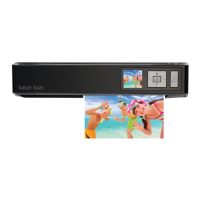
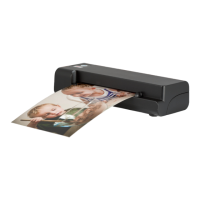
2. Place a photo/document facing up against right edge, adjust the paper
guide, gently push it in until it is pulled into the feed slot
3. Press the settings to set the resolution (standard 300dpi or fine
600dpi) press the scan button
Your device will show a real-time preview and the WiFi LED indicator will
blink pink light during scanning
4. Press the Save button to save the image in JPG format to the device’s
photo albums
PHOTO SLEEVE
Use the photo sleeve when photos are fragile or small, to avoid damage
or jams, and get the best result.
1. Remove the plastic foil on the sleeve, place the photo inside it, insert
the tongue into the slot at the open end
2. Insert the SEALED end of the sleeve facing up into the feed slot, adjust
the paper guide and then follow ‘Scan and Save’ procedures to scan to
a device
POWER
A8
A6
A4
Note: if you would like to rescan the photo/document, press Cancel and
repeat the above steps.


 To Next Page
 Loading...