13
12
CONNECT TO A WIFI NETWORK
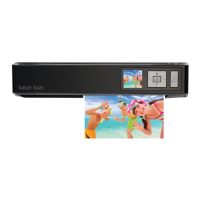
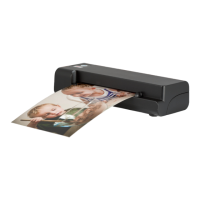
Use the WiFi function to scan photos to your device wirelessly!
1. Press and hold POWER button for 2 seconds to switch the unit on
• The power LED indicator will glow green. Wait approx 20 seconds for
the unit to initialise. The WiFi LED will then blink blue to indicate that
the WiFi is enabled
2. On your device, search for available wireless networks (usually via
the Settings > WiFi option on your device). Find the network name
“DIRECT-xxxxxx_iScanAir” for the WiFi scanner
3. Input 8-digit password “12345678” and connect
Wireless Scanner to your iPad, iPhone, iPod touch, Mac
Enable the Wi-Fi mode on your device, and search
Connected
Wi-Fi On
Blinking Blue LED
Wi-Fi function is enabled.
Steady Blue LED
Wireless Scanner is connected to a
device.
• At this point, the WiFi indicator will stop blinking and glow blue steadily
to indicate a successful connection
4. The scanner is now ready for use!
CONNECT TO A WIFI NETWORK
MacBook Pro
Connect via Wi-Fi Network
Note: WiFi scanner
will go to power saving
mode after 5 mins. Once
scanner turns off the
WiFi connection is lost Note: more then one device can be connected to the scanner at once


 To Next Page
 Loading...