34
Q: I cannot feed the paper. Why?
A: Try these solutions:
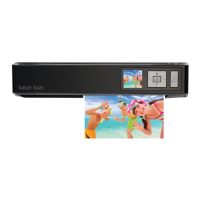
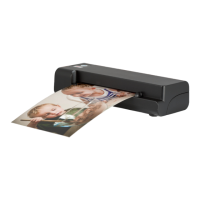
• Make sure the photo/document is gripped by scanner’s rollers prior to
scanning
• Remove the photo/document for the feed slot and insert it again
• Check the paper thickness. The acceptable paper thickness
is 0.08 - 0.6mm
• Scan only one photo/document at a time. Wait until the photo/
document has fully ejected before inserting another
Q: My device runs iOS6 or later, and I’m getting a message that says,
‘iScan Air would like to access your photos’ after I select save. Why?
A: This is how iOS6 or later saves images to your device. You must
select OK to save images to your library. If you select ‘Don’t Allow’,
no image will be saved and you will see an error message for the next
scan. Follow on-screen message to solve the problem by selecting:
• Settings > Privacy > Photos > iScan Air > ‘ON’ to allow the iScan Air app
to access your photos
FREQUENTLY ASKED QUESTIONS


 To Next Page
 Loading...