Bladder Volume Tester User’s Manual V1.02
- 10 -
Chapter Seven Work Main Interface
7.1 Work main interface
Press the button
on the front panel, turn on the machine, the touch screen displays the work
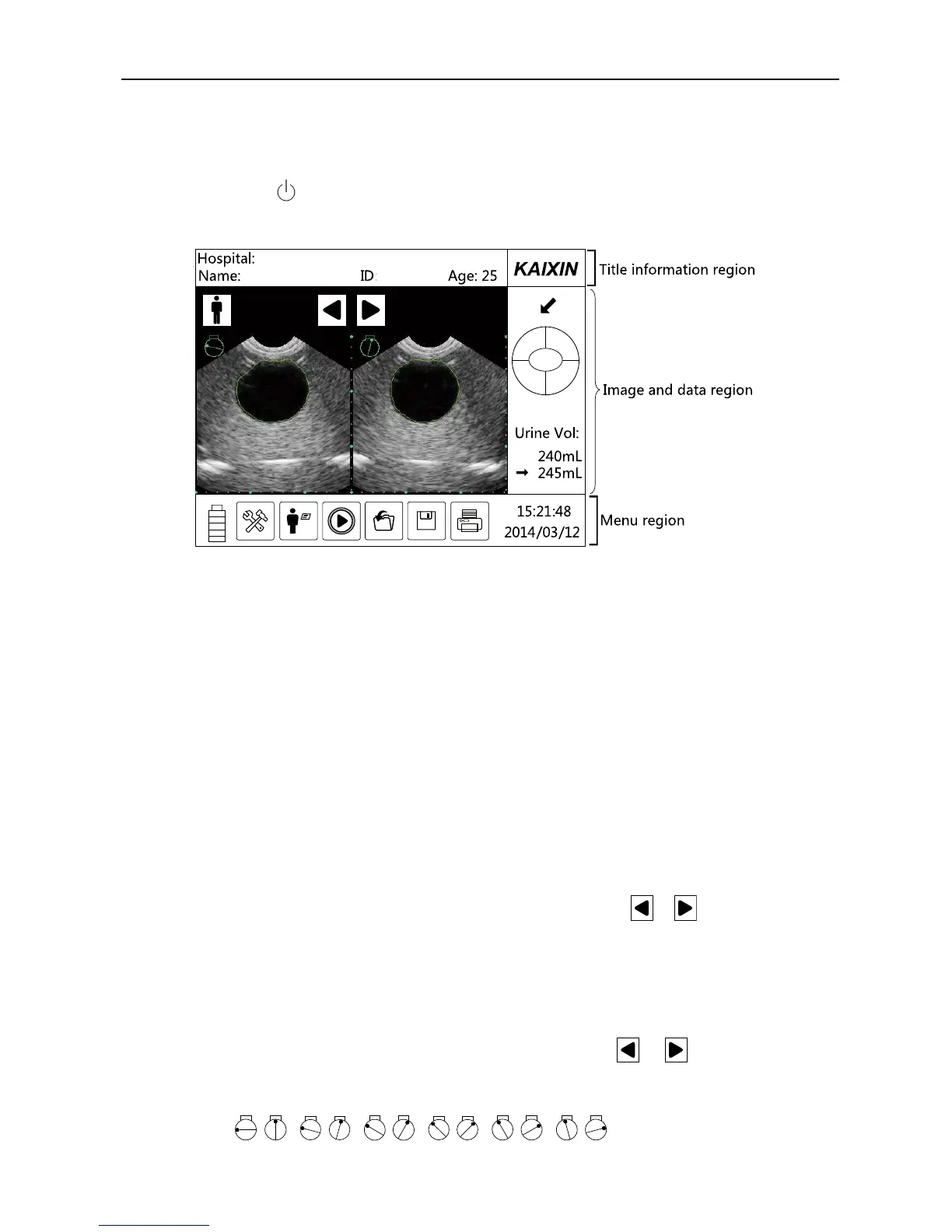
main interface, as follows:
Fig. Work main interface
Work main interface shows the ultrasonic images, various parameters and the corresponding
operation menus, etc. Main interface is divided into title information region, image and data region, and
menu region.
7.2 Title information region
It displays the hospital name, patient information (name, ID, age), company logo, etc.
1. Hospital name
Display hospital name. Hospital name can be edited and modified in the “System/Basic Settings”.
2. Patient information
Display the patient’s name, ID and age. In the module of “New Patient”, input or edit the name, ID
and age for the current patient.
3. Company logo
The company logo is shown on the top right of screen.
7.3 Image and data region
The image and data region is divided into left part and right part.
The upper part of left displays patient mode and image selection keys (
/ ). Patient modes are
divided into obesity mode, standard mode and child mode. Touch left or right image to enter manual
contour interface, for individual complex images having large error, the doctor may choose manual
contour function.
The lower part of left displays B-mode images of bladder section. Sectional images of bladder
have a total of 12 frames, which are divided into six groups, each group consisting of two
orthogonal images; you can switch the images by touching the keys and at the top of images.
The six groups of orthogonal images are generated by the scanning planes automatically changed by
15°intervals, the upper left corner of each image displays the scanning position of bladder,
respectively are
, , , , , .


 To Next Page