2.Power-on Password Reset
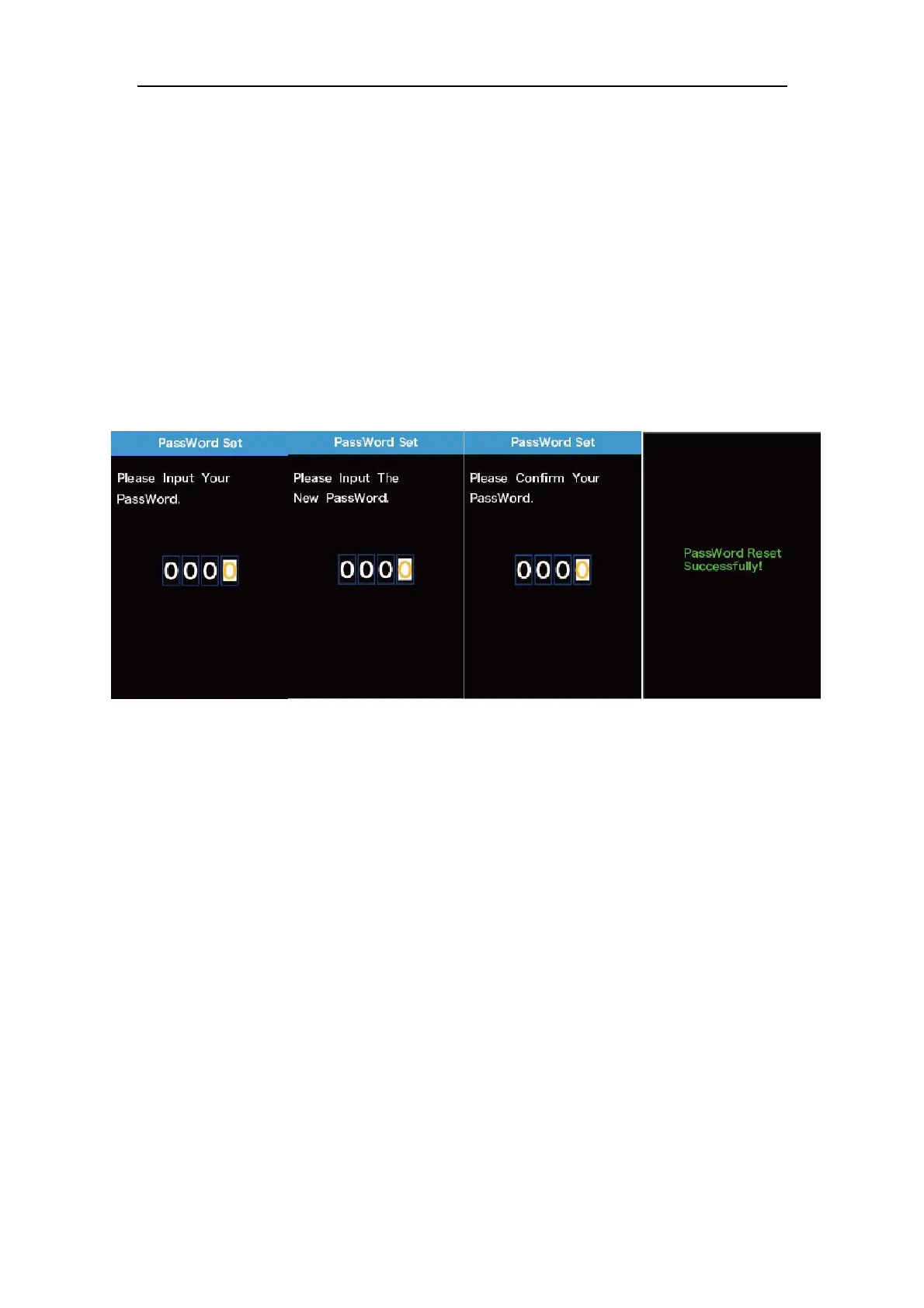
From the last interface above, press the “+” or the “-” button to select ‘Reset PassWord’ and
press the “i” button to confirm to access power-on password reset interface. There are 3 pages
for setting up a new password:
In the first page, please enter the current password or default password ‘1212’ correctly.
Then it moves to the second page for inputting a new password. Press the “+” or the “-” button
to increase or decrease the number and then press the “i” button to confirm digits one by one
until a new 4-digit password is completed.
Finally, it comes to the third page and reenter the new password again for confirmation. The
screen displays ‘ PassWord Reset Successfully’
When switching on the E-bike system next time, please enter the new password to power on.
Password Change Interface
◆
Exit Settings
In the settings interface,
1. Briefly press the “i” button is to confirm and store a changed setting but stay within
current setting menu.
2. Hold the “i” button for 1 second is to store a changed setting and exit current
setting menu and return back to display start-up interface.
3. Hold the “-” button for 1 second is to cancel the setting operations without storing
a change and return back to display start-up interface.
■If there is no setting operations in one minute; the display will exit the settings state


 To Next Page