11 12
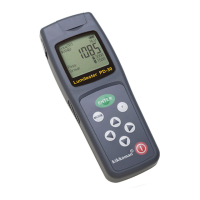
③“-PC-” will appear on the screen of the PD-30.
Key operation is not accepted while the PD-30 is connected to a PC.
④Double-click the Lumitester icon on your desktop, and the control software will
start-up. If the icon is not on the desktop, open the “Start Menu” → “All
Programs” → “Lumitester PD-30” → “Lumitester Control Software”.
<How to Exit the software>
①Click “Exit” button.
②Upon clicking it, the screen below will appear. If you want to exit the software,
click “Yes”. If you want to continue, click “No”.
③Remove the USB cable.
<Checking the Connection>
After launching the Control Software, load the date from the PD-30.
The connection is successful if the COM port is displayed at the lower right of the
window.
Select a language from the option buttons.
Load the language form the PD-30.
Set the language to PD-30.
r
Clicking the option button immediately changes the language of the Control Software.
rClicking the set button changes the language of the PD-30.
3.2 Basic operation
Select and input the language, date and user name.
3.2.1 Language selection


 To Next Page
 Loading...