Front_norm Front_emr
Album
Front_photo
F
!
F F
Front_norm
06-26 15:21 06-26 12:20 06-24 11:37
1/16
8. Playback
8.1 Playback on the Dash Cam
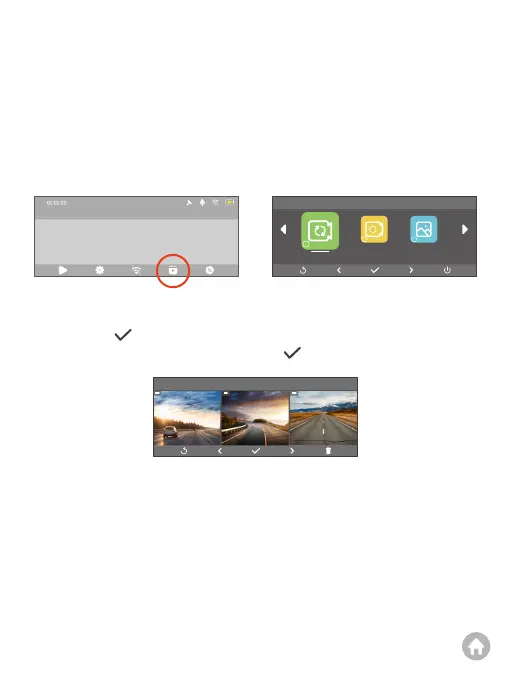
To playback your videos on the dash cam, first make sure the dash cam is on the
preview interface, then press the button under the Album icon to access the
playback screen. From there, you can choose to playback normal and emergency
videos recorded by the front or rear cameras respectively.
8.2 Playback on A PC/MAC
(1)Transfer data
Option 1: Transfer data using a USB cable.
➀ First connect the USB cable to the dash cam’s USB Type-C power port, then
plug the camera into your computer's USB port.
➁ Choose to connect as “USB Storage”.
For instance, if you want to watch a video recorded by the front camera, just press
the OK button to access the video folder of the front camera, then choose the
video you want to playback, and press the OK button, the video will play.
2023-11-11 00:00
4K


 To Next Page