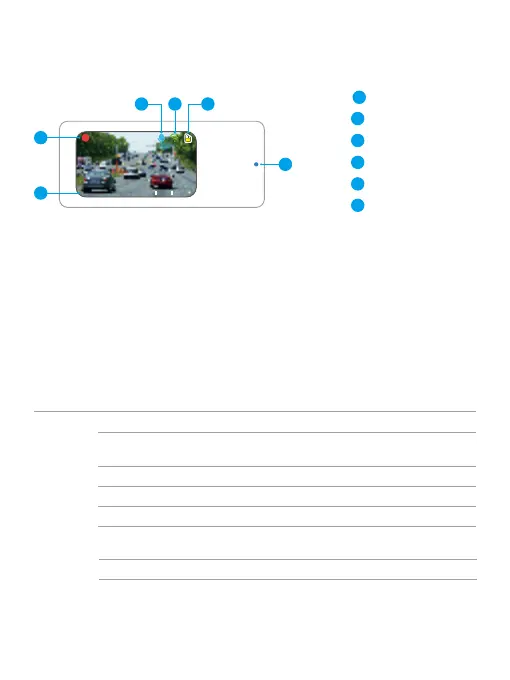
Video Time
Date & Time
Audio Recording
Wifi
Memory Card
Indicator
1
1
(1) Preview Screen
00 35
:
05-29-2024 18 26 19
6
2
2
3
4
5
6
3 5
4
(2) Indicator
Red flashing: recording video.
Yellow flashing: locking the current video.
Blue flashing: not connected to the app.
Remains on: connected to the app.
(3) Button Operation Introduction
The E2 Pro dash cam comes equipped with only one button which is primarily for
basic operation. For details, see the table below:
Note: The dash cam is designed to turn on and record automatically as soon as it’s
powered up. To stop recording or for further operation, you will need to connect
your dash cam to the Kingslim app.
Power
Button
Press this button once to view the live feed of the rear camera.
Press this button twice to get the QR code for downloading the
Kingslim app.
Press this button three times to view the camera’s date and time.
Press this button four times to view the Wifi details.
Press this button 5 times to return to the recording screen.
Press and hold this button for three seconds to turn the camera
on or off.
Quickly press this button twice to snap a photo.



 To Next Page