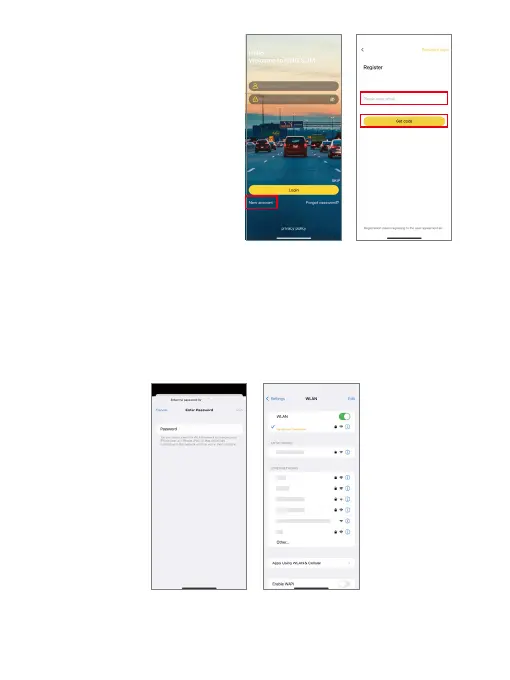
➁ Tap “New Account” to enter your
email address, then tap “Get Code”.
A verification code will be sent to
your email address. Once entered,
your new Kingslim app account
will be ready for use.
Tip: If you already have an account,
log into the app directly. You can also
access the Kingslim app without
registration by tapping “Skip”.
Tips:
➀ By default, the camera’s Wifi is turned on when your dash cam is on. To view the
Wifi SSID, press the Power button four times.
Kingslim_
********
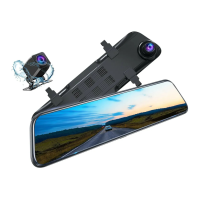
(3) Connect to the Kingslim app.
Step 1: Plug in your E2 Pro dash cam. It will then power on with Wifi enabled.
Step 2: Connect the camera’s Wifi. Go to your smartphone's Wifi settings page,
search for the Wifi SSID, and then tap on it to enter the default password 12345678
for connection.
“Kingslim_
********”



 To Next Page