Forgot Password
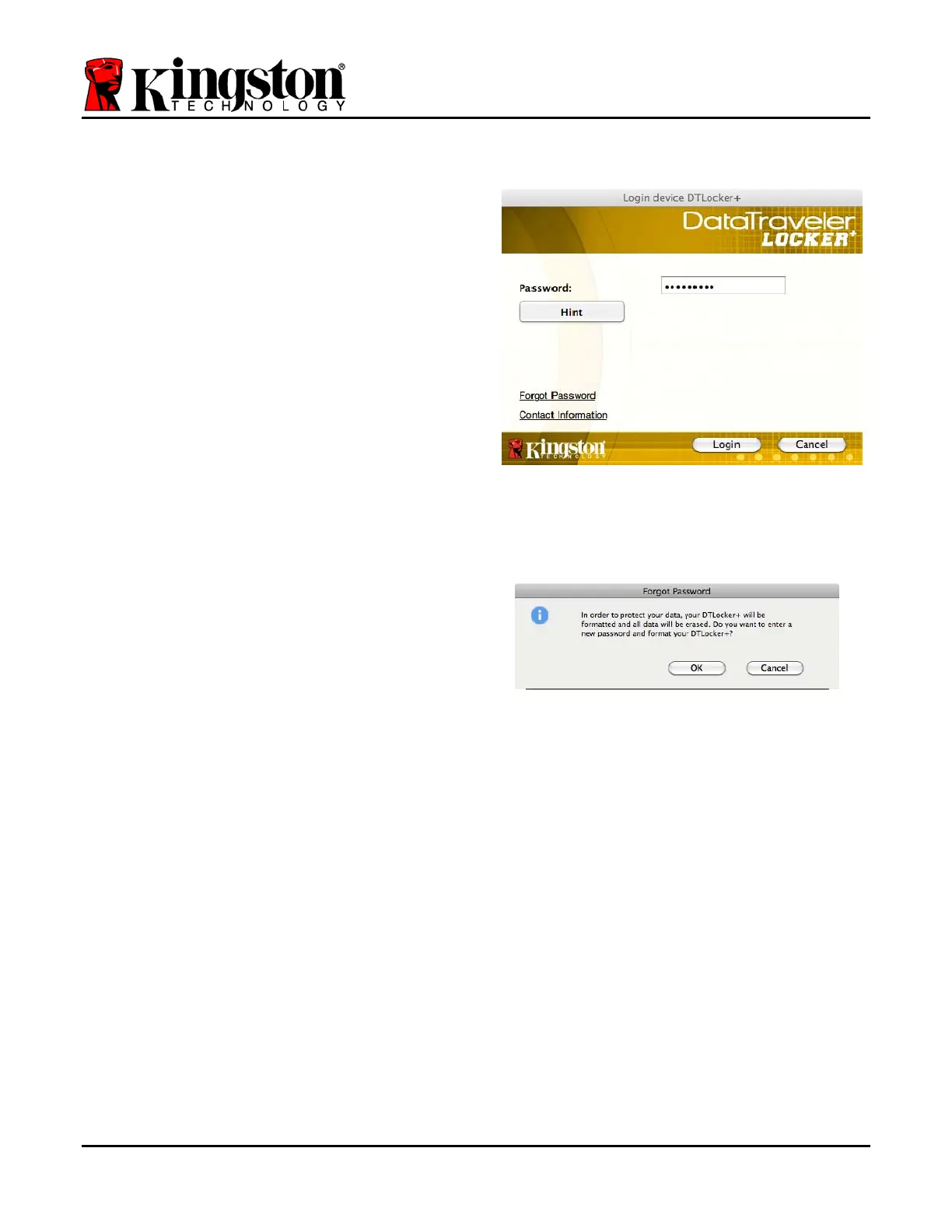
If you forget your password, you can click on
the ‘Forgot Password’ link that appears in the
device login window when DTLplus_Launcher
is executed (see Figure 10.3.)
This option will allow you to create a new
password, but in order to protect the privacy of
your data, the DTL+ will be formatted. This
means that all of your data will be erased in
the process.*
When you do click on ‘Forgot Password’, a
message box (Figure 10.4) will appear and ask
if you want to enter a new password prior to
executing the format. At this point, you can
either 1) click ‘OK’ to confirm or 2) click
‘Cancel’ to return to the login window.
Figure 10.3 – Forgot Password
If you opt to continue, you will be prompted to
create a new complex password and a new
hint. The hint is not a mandatory field, but it
can be useful in providing a clue as to what
the password is, should the password ever be
forgotten.
(Note: The hint CANNOT be an exact match
to the DTL+ password.)
Figure 10.4 – Prompt Before Format
*Note: A device format will erase ALL of the information stored on the DTL+’s secure data
partition.
Document No. 48008071-001.A02 DataTraveler
®
Locker+ Page 21 of 22


 To Next Page