Device Options (Windows Environment)
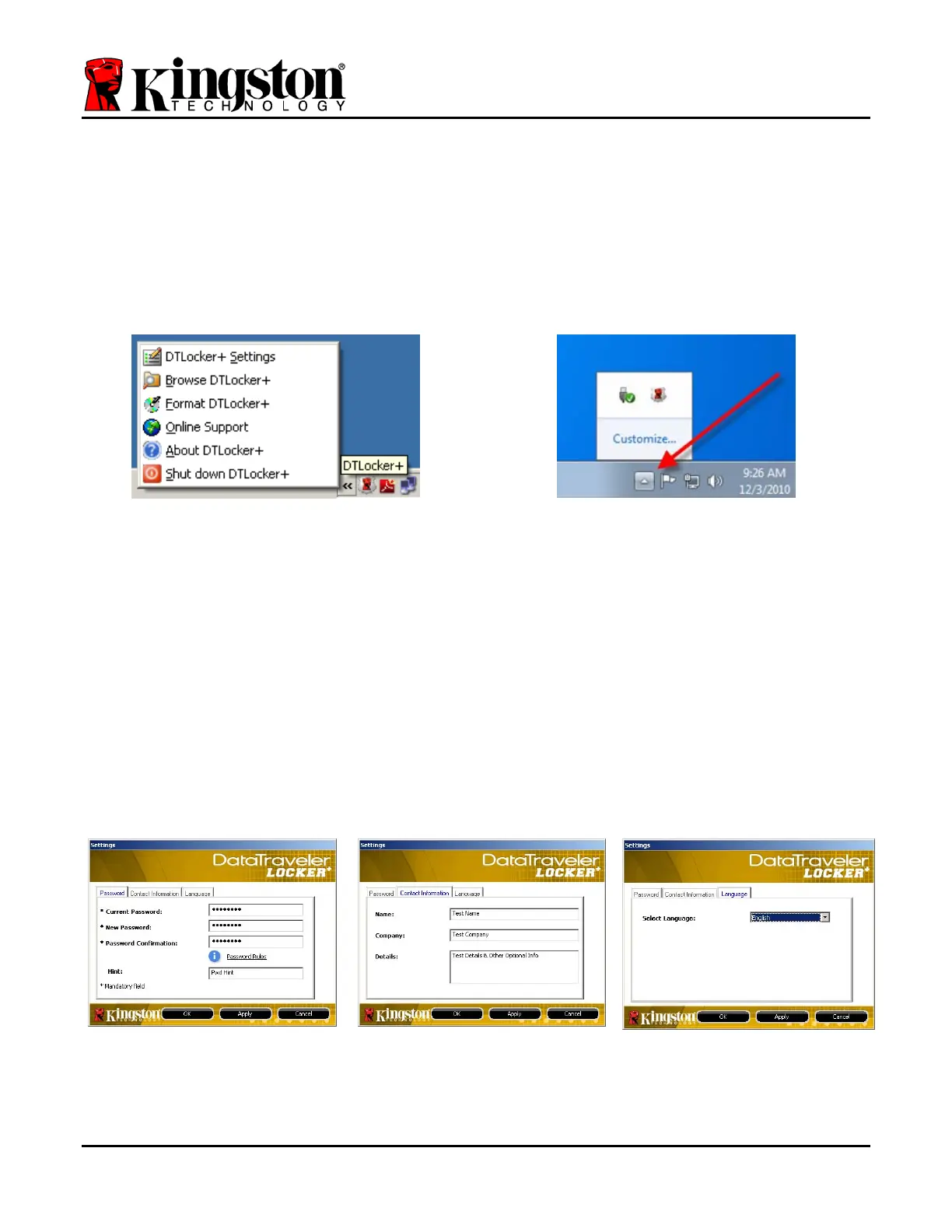
While you are logged into the device, there will be a ‘DTL+’ icon located in the right-hand
corner of the Windows taskbar (
Figure 5.1.) (Note: Windows 7 users will need to click on the
up-arrow button in the taskbar in order to access the ‘DTL+’ icon (
Figure 5.2.)
Clicking once on the DTL+ icon will display the following menu:
Figure 5.1 – DTL+ icon in taskbar
Figure 5.2 – DTL+ icon in taskbar
(Windows 7 users)
DTL+ Settings
• Allows you to change your password and/or hint (Figure 5.3)
• Allows you to add/view/change your contact information (Figure 5.4)
• Allows you to change your current language selection (Figure 5.5)
(Note: For security purposes, your current DTL+ password is required to update and/or modify
any of these settings.)
Figure 5.3
Change Password
Figure 5.4
Contact Information
Figure 5.5
Select Language
Document No. 48008071-001.A02 DataTraveler
®
Locker+ Page 10 of 22


 To Next Page