Setup (Windows Environment)
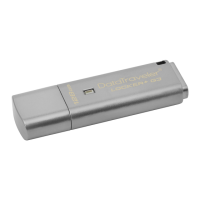
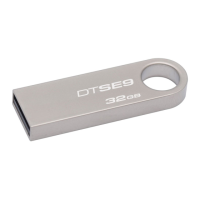
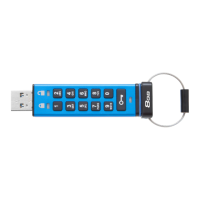
1. Insert the DTL+ into an available USB port on
your notebook or desktop and wait for Windows
to detect it.
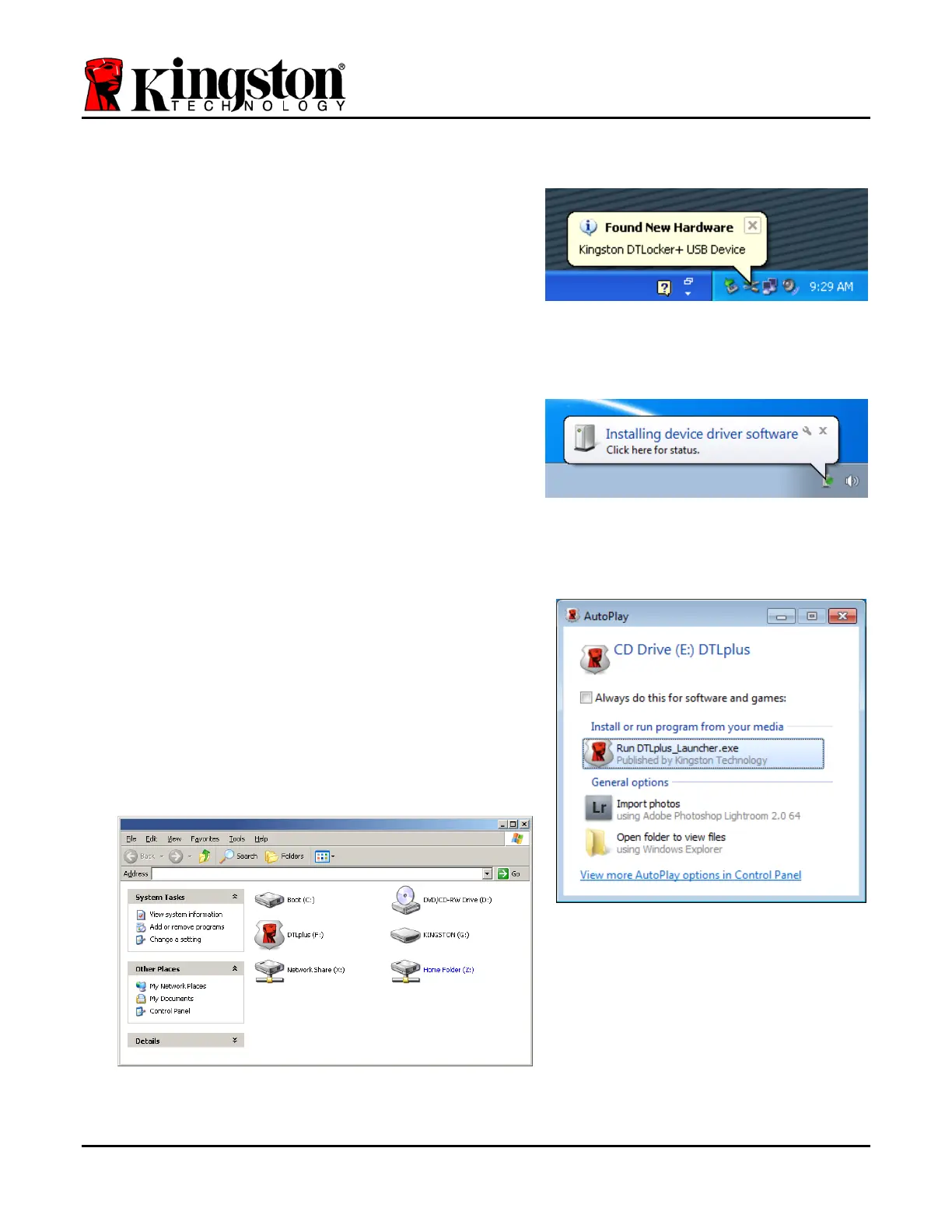
• Windows XP users will receive a ‘Found New
Hardware’ notification as seen in
Figure 2.1.
• Windows Vista/7 users will receive a device
driver notification as seen in
Figure 2.2.
Once the new hardware detection is complete,
Windows will prompt you to begin the initialization
process.
• Windows
XP users can skip step 2 and go to
page 5 – Device Initialization.
• Windows Vista/7 users will see an AutoPlay
window similar to the one in Figure 2.3.
2. Select the option ‘Run DTLplus_Launcher.exe’.
If Windows does not AutoPlay, you can browse to
the CD-ROM partition (Figure 2.4) and manually
execute the DTLplus_Launcher program. This will
also start the initialization process.
Figure 2.4 – DTL+ Contents
Figure 2.1 – Found New Hardware
(Windows XP)
Figure 2.2 – Device Driver Installation
(Windows Vista/7)
Figure 2.3 – AutoPlay Window
(Windows Vista/7)
(Note: Menu options in the AutoPlay
window may vary depending on what
programs are currently installed on
your computer. AutoRun will start the
initialization process automatically.
)
Document No. 48008071-001.A02 DataTraveler
®
Locker+ Page 4 of 22


 To Next Page