Setup (Mac Environment)
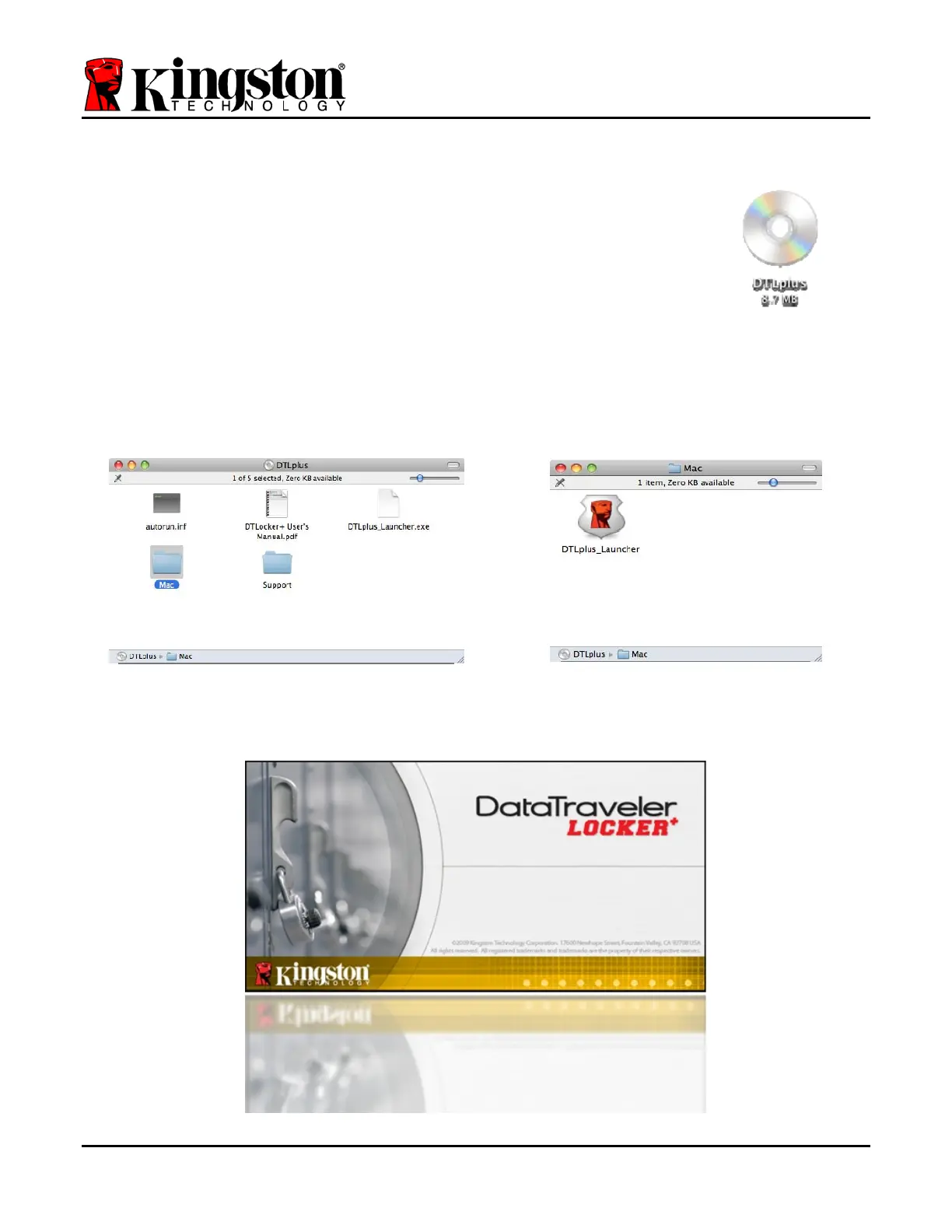
Insert the DTL+ into an available USB port on your notebook or
desktop and wait for the Mac operating system to detect it. When it
does, you will see a DTLplus volume appear on the desktop, as seen in
Figure 6.1.
1. Double-click the DTL+ CD-ROM icon.
2. Double-click the Mac folder found in the window displayed in
Figure 6.2.
Figure 6.1 – DTLplus
3. Double-click the DTLplus application icon found in the
window displayed in Figure 6.3. This will start the initialization
process.
Figure 6.2 – DTL+ Contents
Figure 6.3 – DTL+ Application
Document No. 48008071-001.A02 DataTraveler
®
Locker+ Page 12 of 22


 To Next Page