Device Usage (Windows Environment)
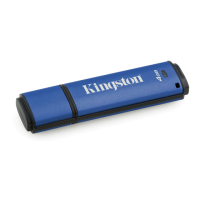
Once the DTL+ has been initialized, you can
access the secure data partition and utilize the
device options by logging into the device with
your password. To do so, follow these steps:
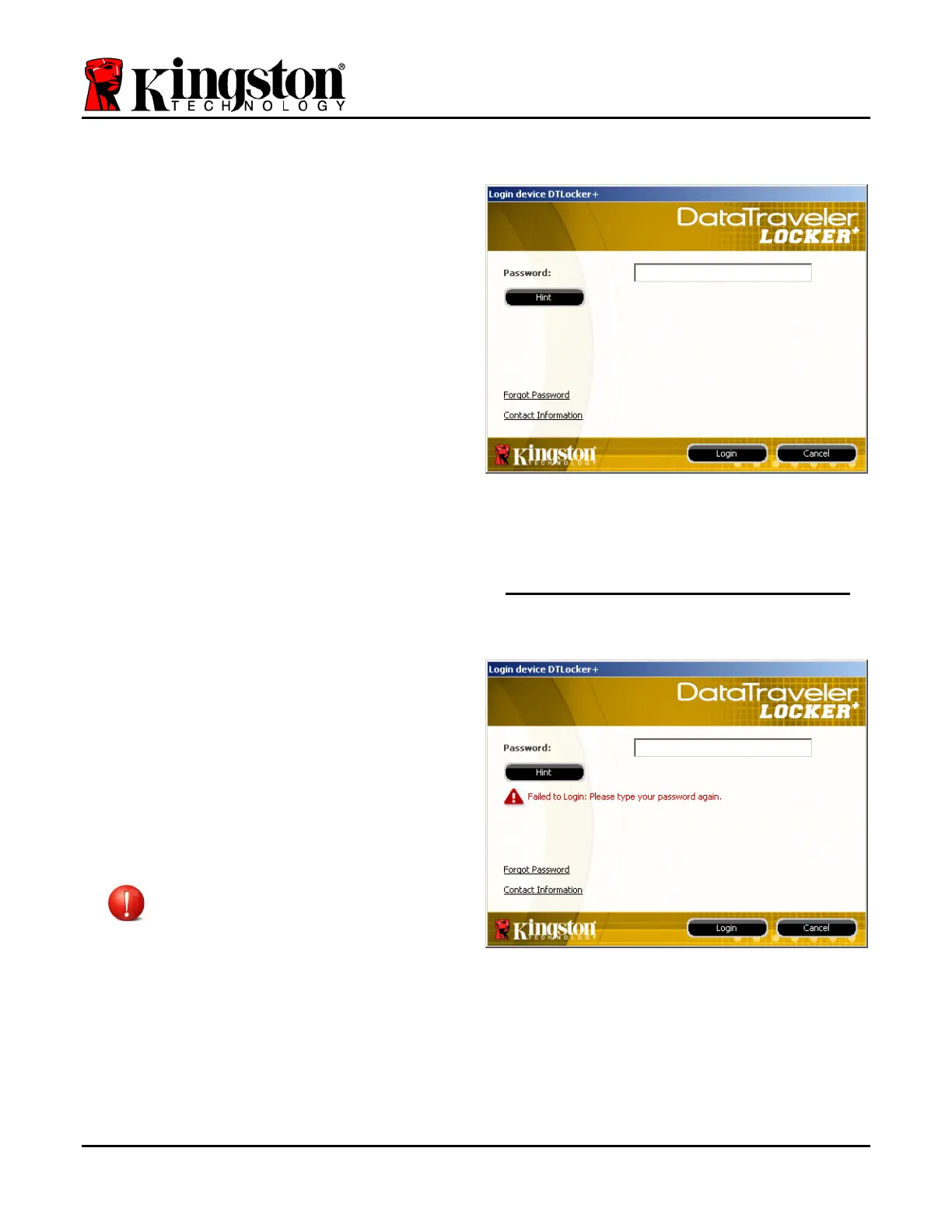
1. Insert the DTL+ into a USB port on your
notebook or desktop and enter your pass-
word (see Figure 4.1.)
2. Once you’ve typed your password, click the
‘Login’ button to continue.
• If the correct password is entered, the
DTL+ will unlock and you can begin
using the device.
• If an incorrect password is entered, an
error message will appear just below
the ‘Hint’ field, indicating a login
failure (see Figure 4.2.)
Figure 4.1 – Login Window
During the login process, if a bad password
is entered, you will be given another
opportunity to enter the correct password;
however, there is a built-in security feature
that tracks the number of failed login
attempts
*. If this number reaches the pre-
configured value of 10 failed attempts, the
DTL+ will lock and require a device format
of the secure data partition prior to next
use.
THIS MEANS THAT ALL DATA STORED
ON THE DTL+ WILL BE LOST.
For more details on this feature, see
‘Device Lockout’ on page 20.
Figure 4.2 – Login Failure
*Note: Once you authenticate to the device successfully, the failed login counter will reset.
Document No. 48008071-001.A02 DataTraveler
®
Locker+ Page 9 of 22



 To Next Page