2. Add a new refrigerator via the menu item "Administration/Add
refrigerator".
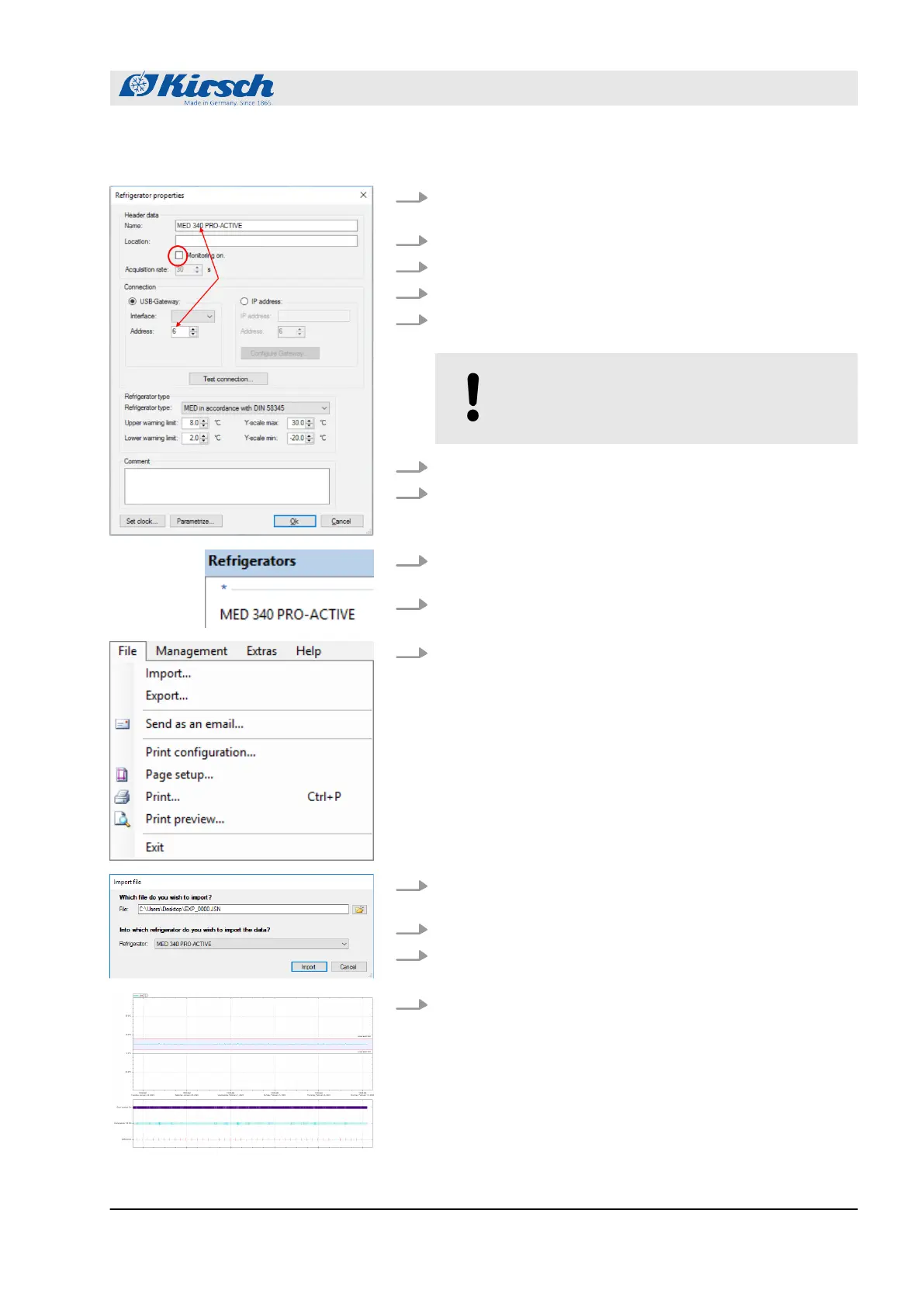
3. The following window appears:
4. Enter the name of the unit and optionally the location.
5. Remove the check mark from ‘Monitoring ON’.
6. If multiple devices are to be managed, set the USB export
address.
NOTICE!
Each address can only be used once.
7. Select the cabinet type.
8. Confirm by OK.
9. The newly created unit appears in the left-hand "Refrigera-
tors" window.
10. Insert the USB stick into the USB port on the computer.
11. Select menu item "File/Import file" in the software.
12. Select the .jsn file to be imported from the USB stick via the
‘Folder icon’.
13. Select the desired refrigerator.
14. Click ‘Import’ to import data.
15. The imported data can be viewed by double-clicking on the
desired refrigerator.
Operation
Data reading-out on the unit with PC-KIT-STICK
23.05.2023 Refrigerator/freezer MED series 47



 To Next Page