the remote control.
Colour temperature ❖
This will increase or decrease Warm (red) and Cool
(blue) colours to suit personal preferences.
Select Cool to give the white colour a blue tint,
Normal to give the white colour a neutral tint, Warm
to give the white colour a red tint.
Noise Reduction ❖
Automatically filters out and reduces the image noise
and improves picture quality when receiving weak
video signals.
Select O/Low/Standard/High according to the
image noise.
Reset ❖
To recover to the default value.
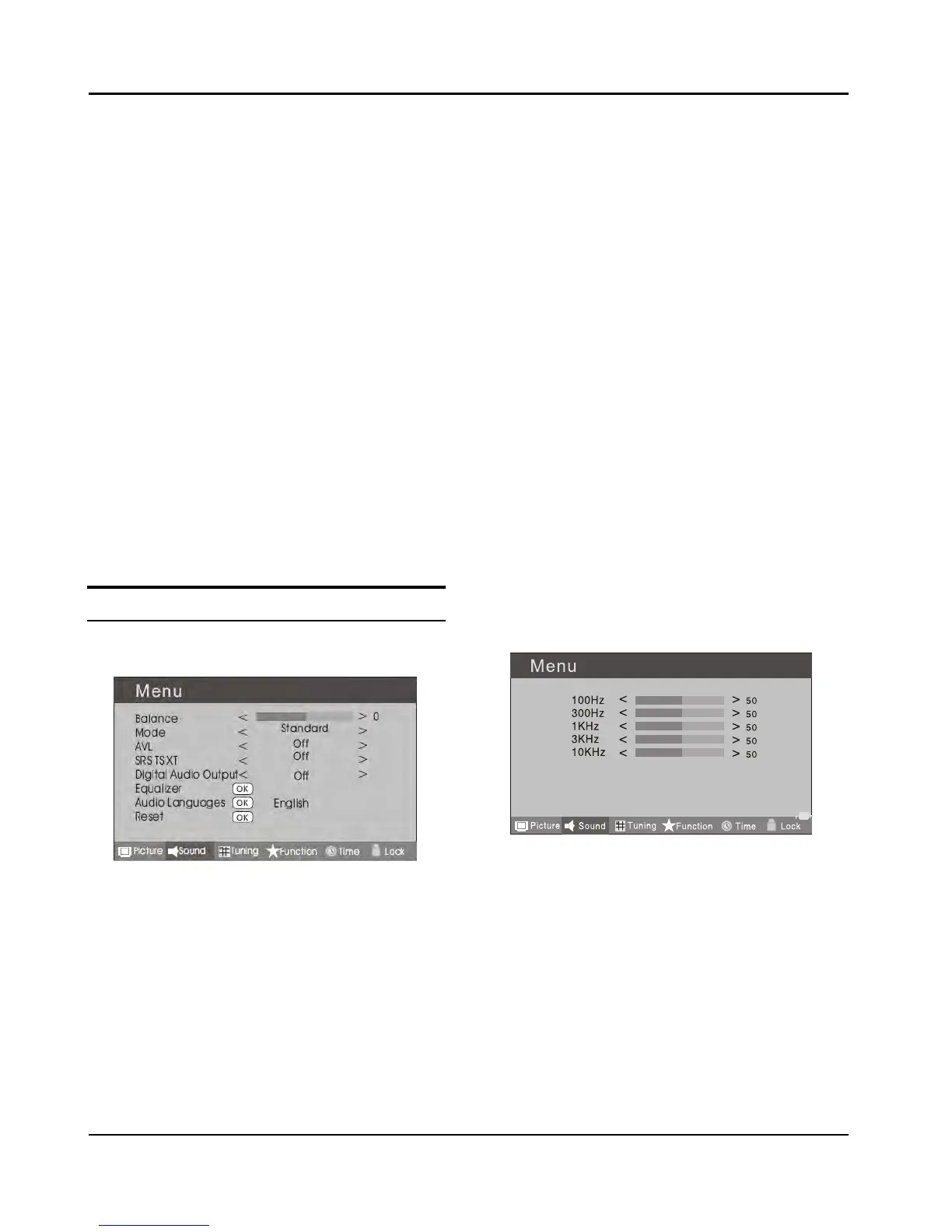
ADJUSTING SOUND
SETTINGS
Changing the Sound Setting
Press A MENU button.
PressB 3 button to select Sound menu, press
button to enter.
Press
C 5 button to select the item requires
adjusting.
Press
D 3 button to adjust the selection item.
When you are satisfied with your choice, press the
E
EXIT button to return to normal viewing or press
MENU button to return to the previous menu.
Balance ❖
This will adjust the output of the right and left
speakers to obtain the best stereo reproduction for
your listening position.
Mode ❖
This will select the sound mode.
Press 3 button to select Standard/Music/Theater/
User according to the program. You can quickly select
the desired mode by S.MODE button on the remote
control.
AVL ❖ (Automatic volume control)
This will reduces the dierences in volume level
among broadcasters.
SRS TS XT ❖
This will control the Woofer output.
Press 5 button to select SRS TS XT.
Press 3 button to set SRS TS XT as OFF, ON.
Digital Audio Output ❖
This will control the Digital Audio Output.
Press button to select Digital Audio Output.,
Press button to set Digital Audio Output. as OFF,
PCM,RAW.
Equalizer ❖
This sound setting can be adjusted to suit your
personal preference.
Audio Languages ❖
Press 5 button to select Primary/Secondary item,
and then press 3 button to select the languages
you needed.
Press button to select Close item, press OK button
to close it.



 To Next Page