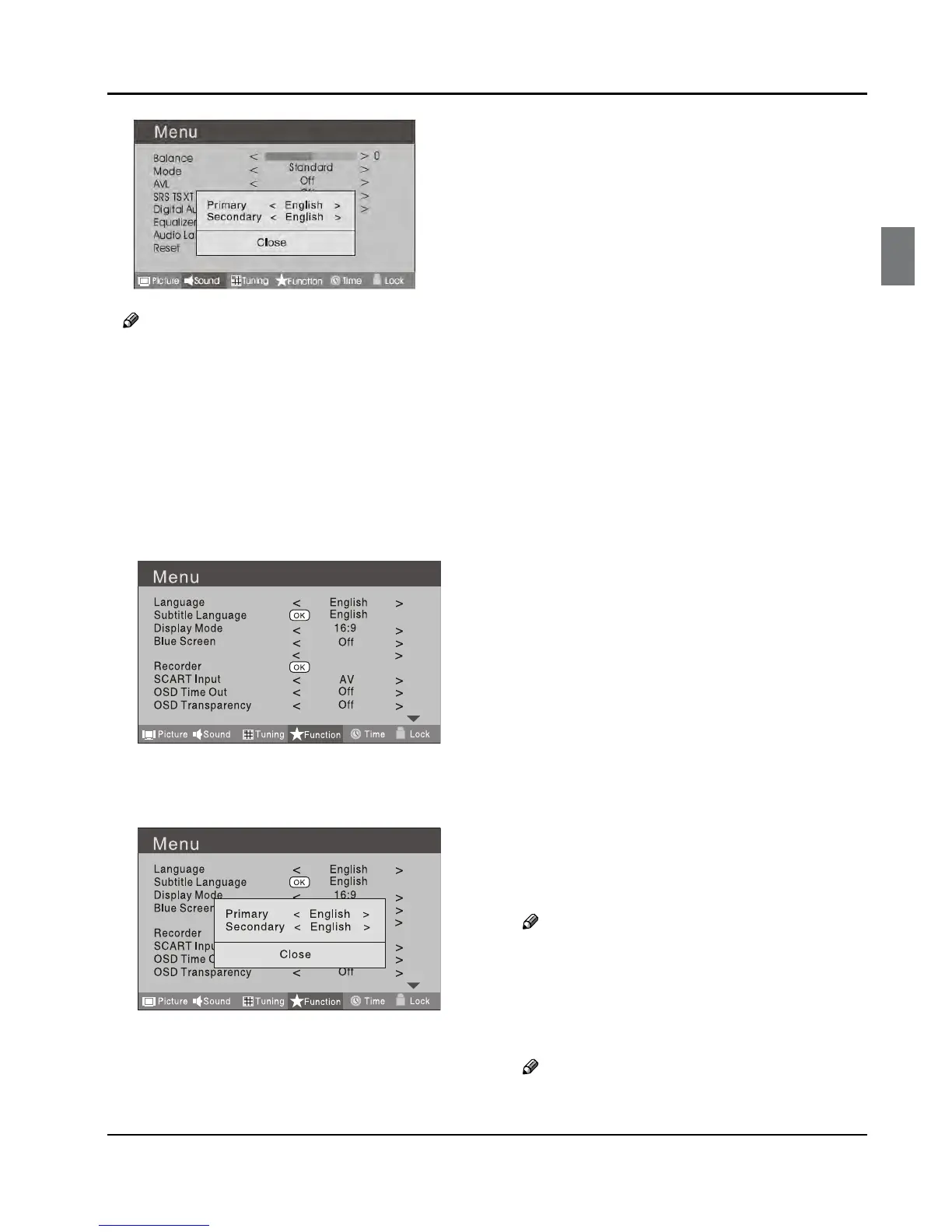
Press C 5 button to select the item requires adjusting.
PressD 3 button to adjust the selection item.
When you are satisfied with your choice, press the
E
EXIT button to return to normal viewing or press
MENU button to return to the previous menu.
Language ❖
To select the menu language.
Subtitle Language ❖
To select the Subtitle language.
Display Mode ❖
To set the picture proportion, press3 button to
select 4:3/Zoom1/Zoom2/Wide/16:9/Auto. You can
quickly select the desired mode by SCREEN button on
the remote control.
4:3 mode •
Choose 4:3 when you want to view a picture
with an original 4:3 aspect ratio, with gray bars
appearing at both the left and right sides.
16:9 mode •
Choose 16:9 when you want to adjust the picture
horizontally, in a linear proportion to fill the entire
screen.
Zoom1 •
Choose Zoom1 when you want to view the picture
without any alteration. However, the top and
bottom portions of the picture will be cropped.
Zoom2 •
Choose Zoom2 when you want the picture to be
altered, both vertically extended and cropped.
The picture taking a halfway trade o between
alteration and screen coverage.
Wide •
Choose Wide when you want to adjust the picture
in a non-linear proportion, that is, more enlarged
at top sides and no alteration, at bottom side.
Blue Screen ❖
This will select the character background colour.
Note
The Blue Screen function is only available for ❏
ATV mode.
Overscan ❖
Press 5 button to select the Overscan,then
Press3
button to set the item as ON or OFF.
Note


 To Next Page