35
SHARING WITH WIFI DISPLAY MIRACAST
You can use Wi-Fi Display, also known as Miracast, as a presentation source for your
CC200 app or for other apps that can share the device screen.
Miracast is a standard for wireless connections from devices (such as laptops, tablets, or
smartphones) to “Wi-Fi Displays” (such as TVs, monitors, or projectors), introduced in
2012 by the Wi-Fi Alliance.
Miracast employs the peer-to-peer Wi-Fi Direct standard and allows sending up to
1080p@30 HD video (H.264 codec) and 5.1 surround sound (AAC/AC3, PCM).
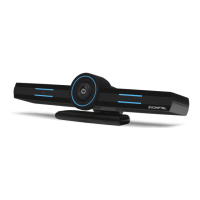
Konftel CC200 can be used as a Wi-Fi Display, connecting a compatible media source to
it (for instance TVs, projectors, and streaming media players that also support Miracast).
For instance:
• Computers running on Windows 8.1/10 (if supported by hw)
• Mobile phones running on Windows 8.1/10 (if supported by hw)
• Android phones and tablets running on Android 4.2 or higher
• Amazon’s Fire OS
• Latest TVs with inbuilt Miracast
Konftel CC200 as Wi-Fi Display
Konftel CC200 can be used as a Wi-Fi Display, with the following capabilities
• Video: H.264 720p30
• Audio: AAC and PCM
On the endpoint, open the pre-installed Wi-Fi Display App (manually or from the
presentation button when using the CC200 App).
The Wi-Fi Display App will prompt you to check if the Wi-Fi settings are active and will
display the name that your CC200 will use to present itself as a Wi-Fi Display to other
compatible devices (i.e. PC and Android phones/tablets supporting Miracast).
The Wi-Fi Settings must be active, even if the device is not connected to any Wi-Fi
network.
On the endpoint you can check this configuration under Configure > Networks>
Wi-Fi.
OPERATION


 To Next Page