36
CONNECT TO WIFI DISPLAY FROM WINDOWS 10 PC
Do one of the following:
On the endpoint, open the Wi-Fi Display App as explained in the “CC200 as Wi-Fi
Display” section.
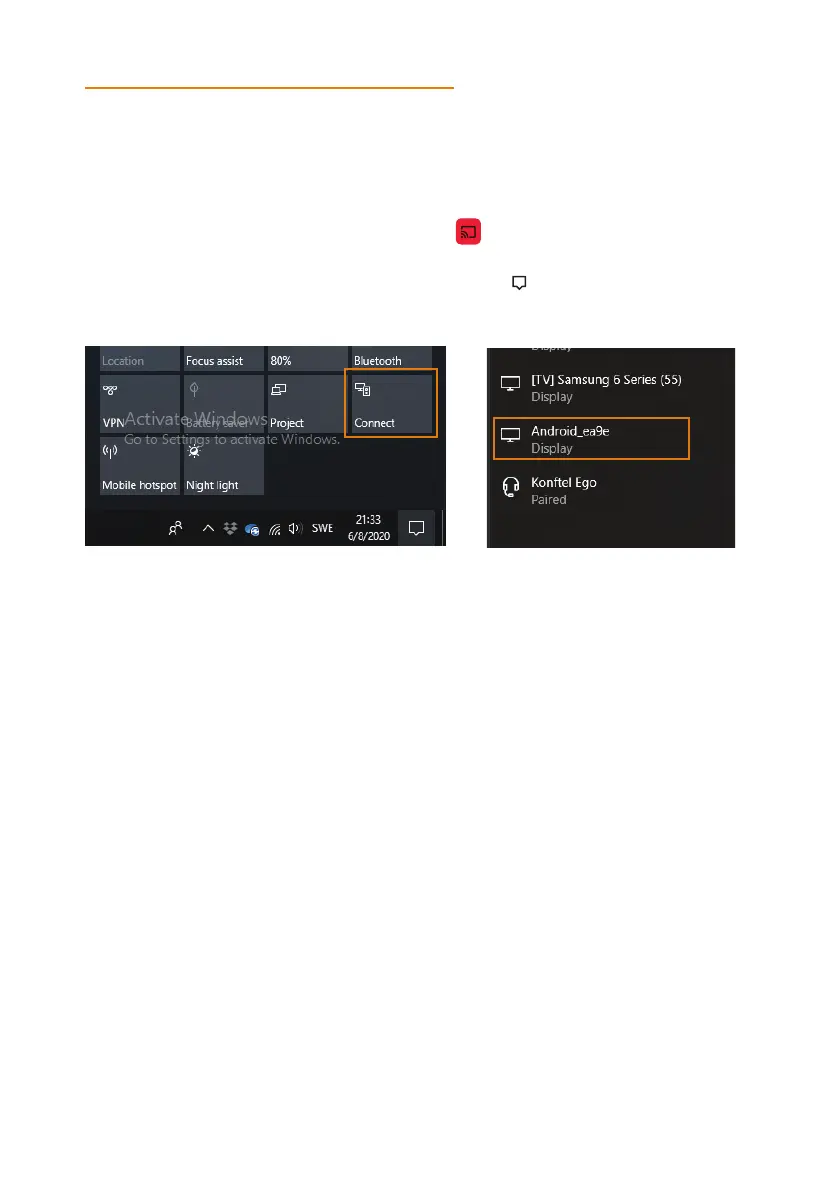
On your Windows PC, click on the Notification Icon (
) present on the Tray Bar
Select Connect
If Miracast is supported, your CC200 Name will show up in the list (as a Display)
Click on your CC200 Name.
Once connected, the Windows PC will see your CC200 device as and additional monitor
at 720p@30fps, where to extend or duplicate the PC desktop.
Using the Project (windows + P) tab on the PC, you can change the desktop
projection mode: Duplicate, Extend etc.
WIFI DISPLAY FROM ANDROID PHONE/TABLET
You can connect Android Phone/Tablet supporting Wi-Fi Display to your CC200.
Do the following:
Activate the Wi-Fi features in your mobile device.
Feature name can vary: Smart View, Screen Mirror, Cast, Miracast.
In the list of devices, select the CC200 to connect to, as Mirror Screen or Display.
When connected, the mobile device will send audio and video to CC200.
Sent content will be centered in the Wi-Fi Display app, keeping aspect ratio of the
source device.
Splitting the CC200 screen or rotating the source (active screen) will recalculate
content placement.
OPERATION


 To Next Page