Auto-accompaniment (style mode)
14
Auto‑accompaniment (style mode)
Playing along with auto‑accompaniment
Auto-accompaniment is a function that automatically plays
accompaniment to match the chord that you specify. The EK-50
features accompaniment paerns in various styles, such as
dance, rock, jazz, Latin and so on. These paerns are called
styles.
There are over 280 styles, divided into 17 groups.
Playing with a style you choose
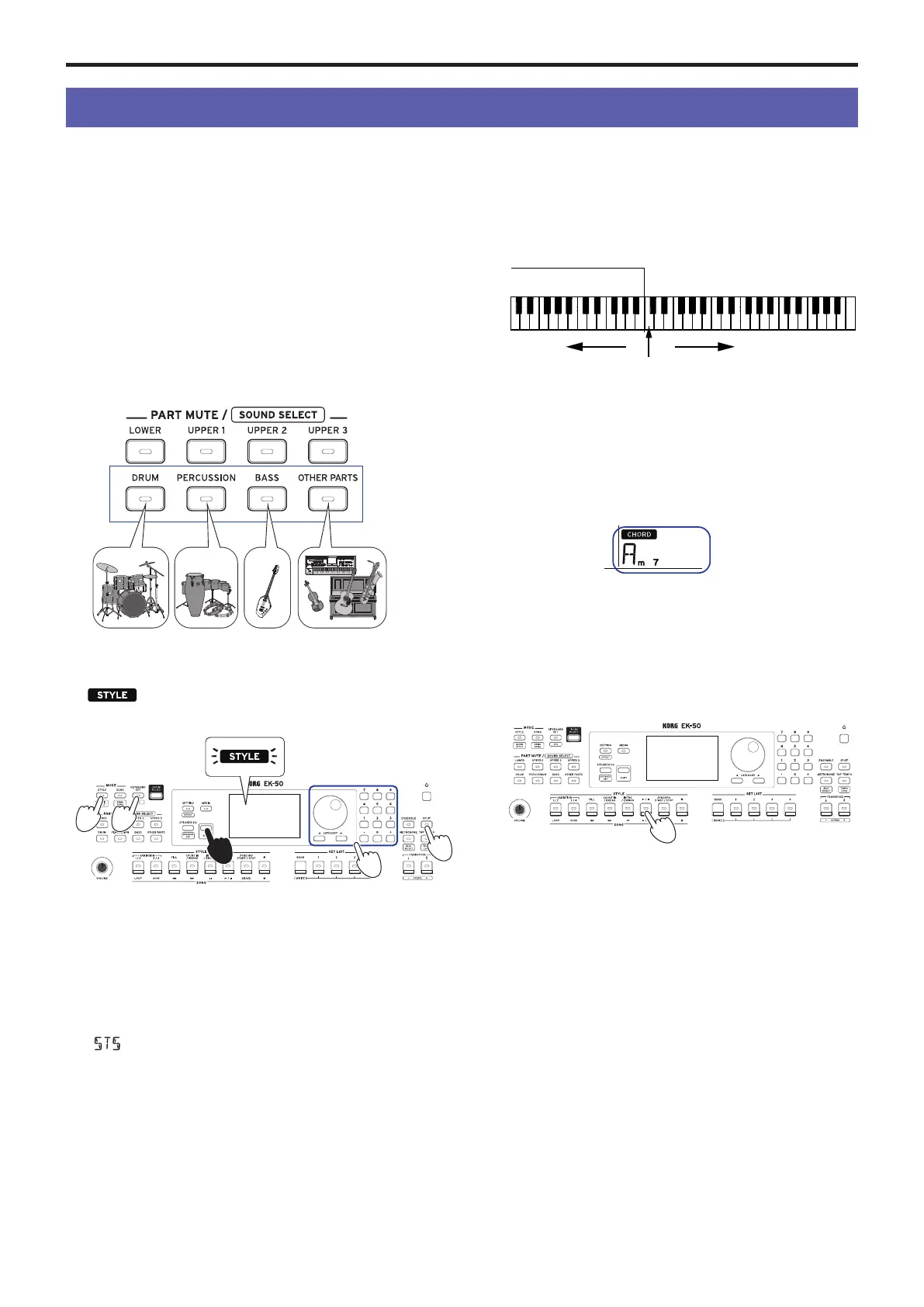
The sounds used in a style (auto-accompaniment) are assigned
to four parts (drums, percussion, bass and other parts).
Together, these four parts are called an accompaniment part.
Accompaniment part
1.
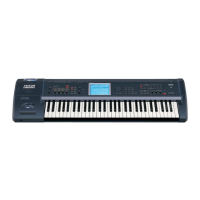
Press the STYLE/[MUSIC STYLE] buon to enter style
mode.
will blink on the display, and the style name will
be shown.
2.
Select the style using the dial.
Use the CATEGORY buons to switch the style between
dierent musical genres.
3.
Press the KEYBOARD SET/[STS] buon while holding
down the [SHIFT] buon.
A keyboard set that matches the style will be recalled, and
“
” (Single Touch Seings) will be displayed before the
keyboard set name.
4.
Press the SPLIT buon to activate the keyboard split
feature (the buon will light).
When you turn the split on, all keys to the left of the split
point (the lower part) will become the “chord recognition
range.”
Turn the split o to make the entire keyboard become the
chord recognition range.
Split point
Right sideLeft side
Chord recognition range
Tip:
To change the split point, press a key while holding
down the SPLIT buon. See page 11 “Changing the
sounds on the left and right (split)” for details on the split
feature.
5.
Play a chord within the chord recognition range.
The chord name that you played is recognized and shown
on the display.
Tip:
You can change how this instrument recognizes the
chords you play, by changing the Chord Detect seing in
the SETTING functions (see page 22 “Chord Detect”).
6.
Press the start/stop buon.
The auto-accompaniment will begin, and the start/stop
buon will light up green.
7.
Play a melody on the right side of the split point on the
keyboard, while playing a chord in the chord recognition
range.
When you change the chord, the accompaniment will
automatically follow along.
Tip:
See “List of chords recognized” (page 30) for a list of
the chords that this instrument can recognize.
Tip:
To change or lock the tempo, see “Adjusting the
tempo” (page 11). When you lock the tempo, the tempo
will not change when you select a dierent style.
8.
To stop the auto‐accompaniment, press the start/stop
buon.
1
2
3
3
4
6,8


 To Next Page