Page | 25
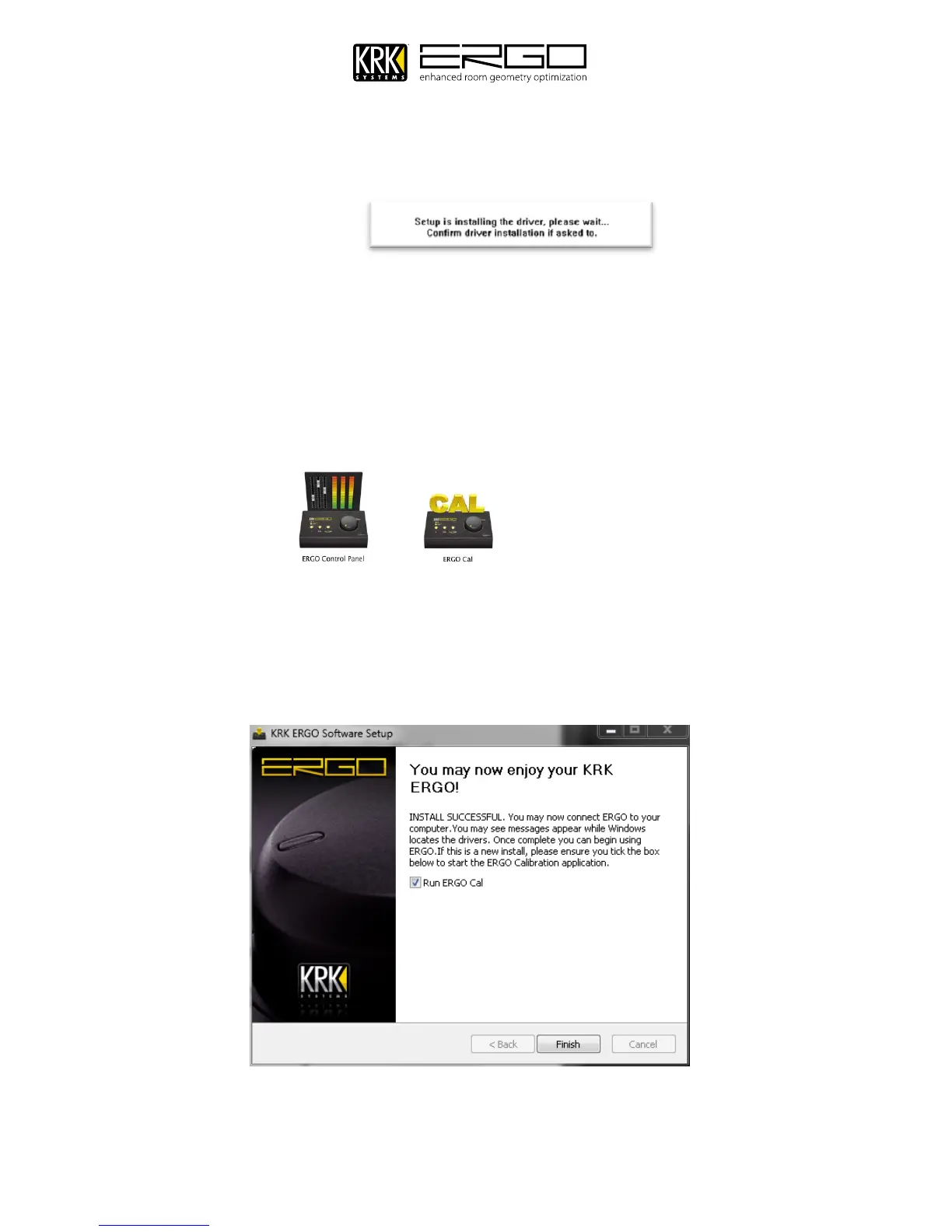
10. On the lower part of your screen you will see the progress bar in the installer window and file information as the
necessary files are installed.
11. During this stage the drivers are installed and Windows may also ask about Windows Logo Testing please
confirm by pressing “Continue Anyway”.
12. The installer will place a folder called “ERGO” within your “Programs” folder. Within that folder you will find the
ERGO Control Panel and ERGO Cal application, as shown below. You can create shortcuts on your desktop for
easy access or drag these to your dock. There is also a ReadMe file which is a guide to configuration, which is a
cut down version of this manual to aid getting set-up quickly.
13. Once the process is completed you will see the screen below. At this point you can now connect ERGO to your
computer and begin the calibration process described later in this document.
14. Note: The first time you connect ERGO to your computer you will see driver install messages near your system
clock at the lower right of your screen. This is expected and once the messages are clear you may move on.
15. At this point you can now connect ERGO to your computer and begin the calibration process described in the next
section.


 To Next Page