EasyManua.ls Logo

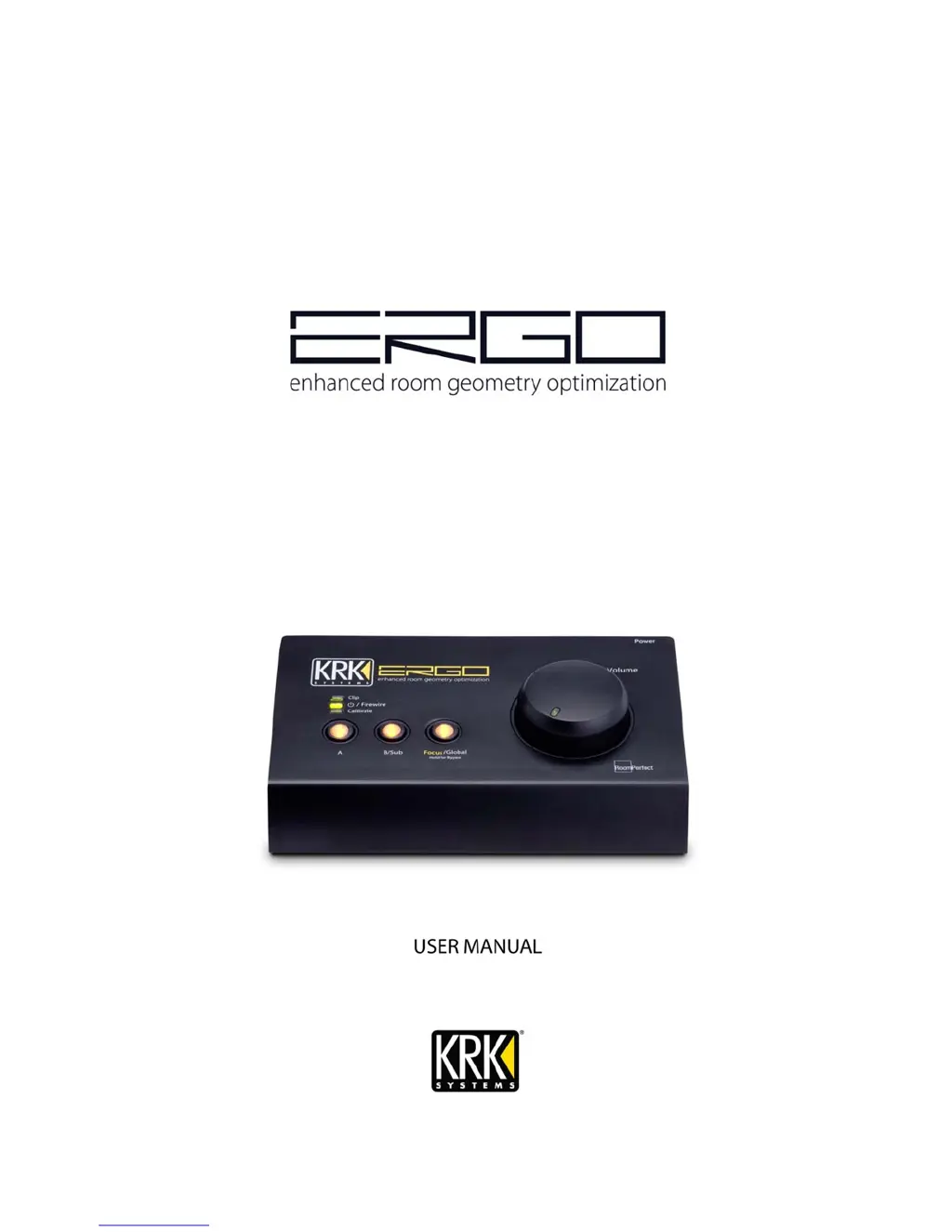
KRK ERGO - User Manual

KRK ERGO
51 pages
Print Icon
To Next Page IconTo Next Page
Loading...

Questions and Answers

  • S
    Sandra GrossJul 25, 2025
    What to do if the calibration mic level is not loud enough on my KRK ERGO?
    • C
      Christopher HernandezJul 26, 2025
      If you find that the calibration mic level isn't loud enough, try increasing the volume on your speakers. Also, you can try turning up the volume directly on your ERGO device.
  • A
    Alex WattsAug 1, 2025
    Why do the power LED/knob LEDs not illuminate when the power switch is turned on for my KRK Music Equipment?
    • T
      Tracey HessAug 1, 2025
      If the power LED or knob LEDs don't light up when you turn on your KRK Music Equipment, here are a few things to check: * Ensure the FireWire port is providing enough power; if not, use the 12VDC power adapter. * Double-check that the power switch is actually turned on, especially when using the external adapter. * Although unlikely, verify that the AC outlet is working.
  • M
    Michael SmithAug 7, 2025
    What to do if my KRK ERGO microphone does not work?
    • A
      Amy HarrisAug 7, 2025
      If your KRK Music Equipment microphone isn't working, ensure that the Calibrate switch on the back of the ERGO is pushed in, and the Calibrate LED on the Front Panel is illuminated. Also, make sure you are only using the KRK mic and no other microphone for calibration.
  • N
    Nancy BanksAug 12, 2025
    What to do if I’m having problems loading the necessary ERGO drivers for my KRK Music Equipment?
    • N
      Natasha JensenAug 12, 2025
      Until a permanent solution is available, follow the instructions to install AppleFWAudio2.0.1.
  • P
    Perry HodgesAug 19, 2025
    Why am I not able to select a buffer size value from the Control Panel while using ERGO in WDM Mode with my KRK Music Equipment?
    • K
      Kristine Hall MDAug 19, 2025
      This is expected behavior. To manually select a buffer size, choose ASIO from the Control Panel.

Summary

IMPORTANT SAFETY INSTRUCTIONS

Introduction

1. Method of Use

Explains the two primary ways ERGO can be used, as an audio interface or stand-alone, and the monitoring options.

2. ERGO and Room Perfect

5. How ERGO works

7. Back Panel Connections

8. Front Panel Features

9. Placing your Monitoring System

10. Stereo Monitor Placement

11. Subwoofer Placement

12. Setting Monitor and Subwoofer Levels

14. Connecting ERGO as an audio interface with a dual stereo monitoring system

15. Connecting ERGO as an audio interface with a 2.1 monitoring system

16. Connecting ERGO to an audio interface using dual 2.1 monitoring systems.

17. Connecting ERGO as a “stand-alone device

18. Connecting ERGO to an existing audio interface

19. Connecting ERGO to your computer

A. System Requirements

Lists the minimum computer specifications for operating ERGO, including OS, RAM, and FireWire ports.

C. Power considerations

Explains the two ways ERGO can be powered: via external adapter or FireWire bus power.

22. Installation for Microsoft Windows Systems

23. Installation for Apple Mac OSX Systems

24. ERGO Calibration

25. Using ERGO Calibration Software (ERGO Cal)

26. ERGO Control Panel (Windows; Mac OSX)

B. Speaker Mode

Allows selection of speaker modes like STEREO A/B or 2.1 A+B(SUB) and adjustment of crossover frequency.

28. Frequently Asked Questions (FAQs)

29. Troubleshooting

KRK ERGO Specifications

General IconGeneral
TypeRoom Correction and Monitoring System
Frequency Response20Hz - 20kHz
Sample Rate44.1kHz, 48kHz, 88.2kHz, 96kHz
Bit Depth24-bit
Power SupplyExternal power supply
MicrophoneIncluded measurement microphone
ConnectivityUSB
Inputs2 x RCA
Outputs2 x XLR
THD+N<0.003%