Page | 43
Audio Settings
E.
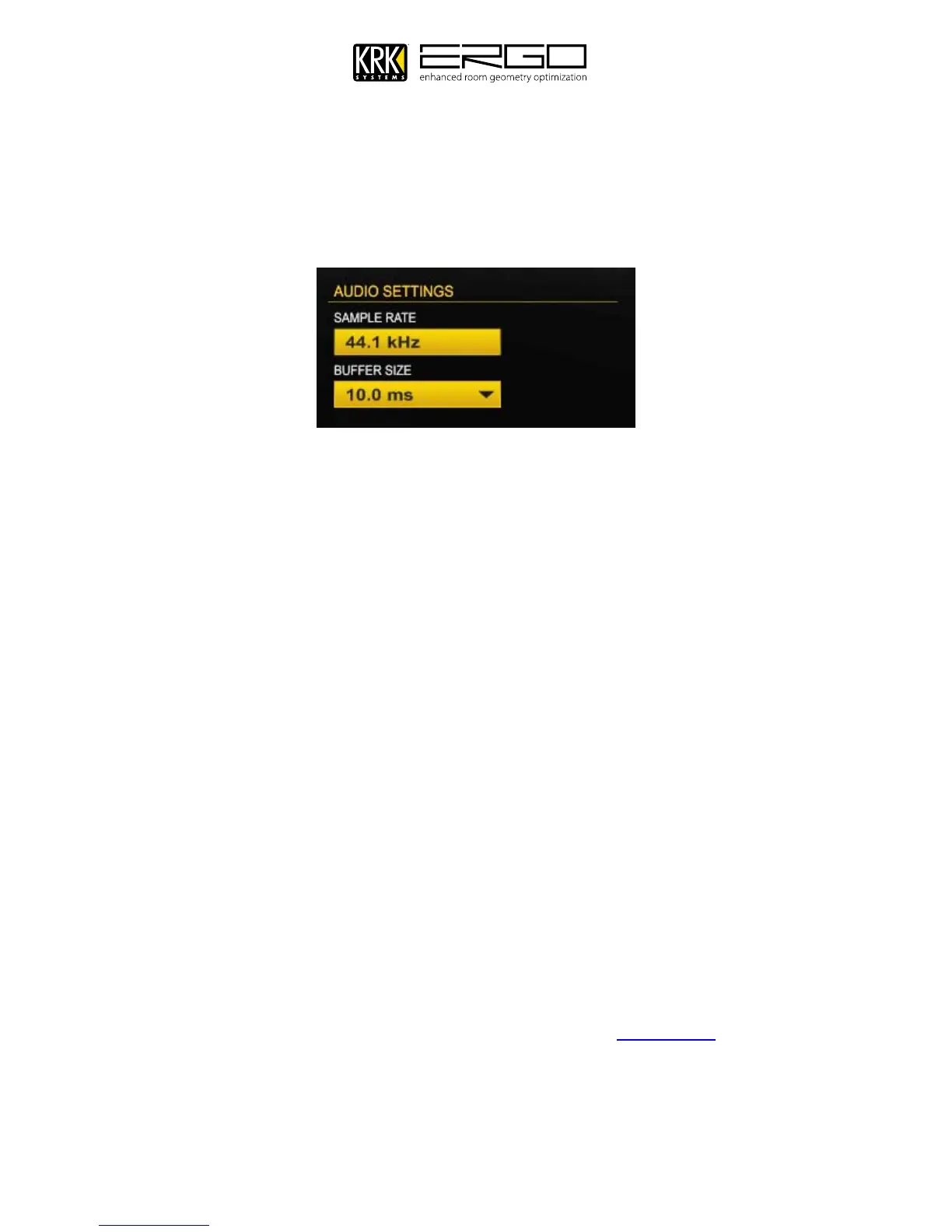
This display lights to indicate ERGO’s sample rate. Use the associated pull down boxes to select ERGO’s
sample rate and ASIO buffer size. Reducing the buffer size can decrease the amount of latency while
monitoring and recording audio. Increasing the buffer size can reduce and /or eliminate some audio
artifacts such as pops and clicks while recording.
Note for Apple Mac OSX users: You will not see a buffer settings size; this is all handled by the integrated
CoreAudio driver for Leopard and Snow Leopard.
Use the associated pull down boxes to select ERGO’s sample rate and buffer size.
Reducing the buffer size can decrease the amount of latency while monitoring and recording audio.
Increasing the buffer size can reduce and /or eliminate some audio artifacts such as pops and clicks while
recording.
To obtain more information about buffer size settings, please refer to your DAW’s User’s Manual (especially
the chapters related to Hardware/Software configuration, Audio Drivers’ selection, etc.
Further Use
F.
Please refer to the audio guides for your Windows or Mac OSX operating system or audio application in
order to get the best out of your ERGO system.
Windows users will see the supported driver categories such as Direct X, Wave and ASIO in the audio
application and can control Windows use of ERGO in the “Sounds (and Audio Devices” page of the Windows
control panel.
Mac OSX user will see the CoreAudio device in the “Audio/MIDI Settings” panel, and in the “Sound” section
of your “System Preferences”
For specific set-up guides for your Digital Audio Workstation, please go to www.krksys.com.


 To Next Page