61
www.kstar.com
62
www.kstar.com
User Manual User Manual
05
Android
iOS
WLAN
CHOOSE A NETWORK...
W2015
2018LA
WLAN
Eybond 2.4g
Eybond2015
W0016250020617
Wifi111
Wifi-test
PASSWORD
12345678
Keep password
Please enter user name
Please enter password
Login
Wi-Fi Config
Register
DEMO>
Wireless Router Connection
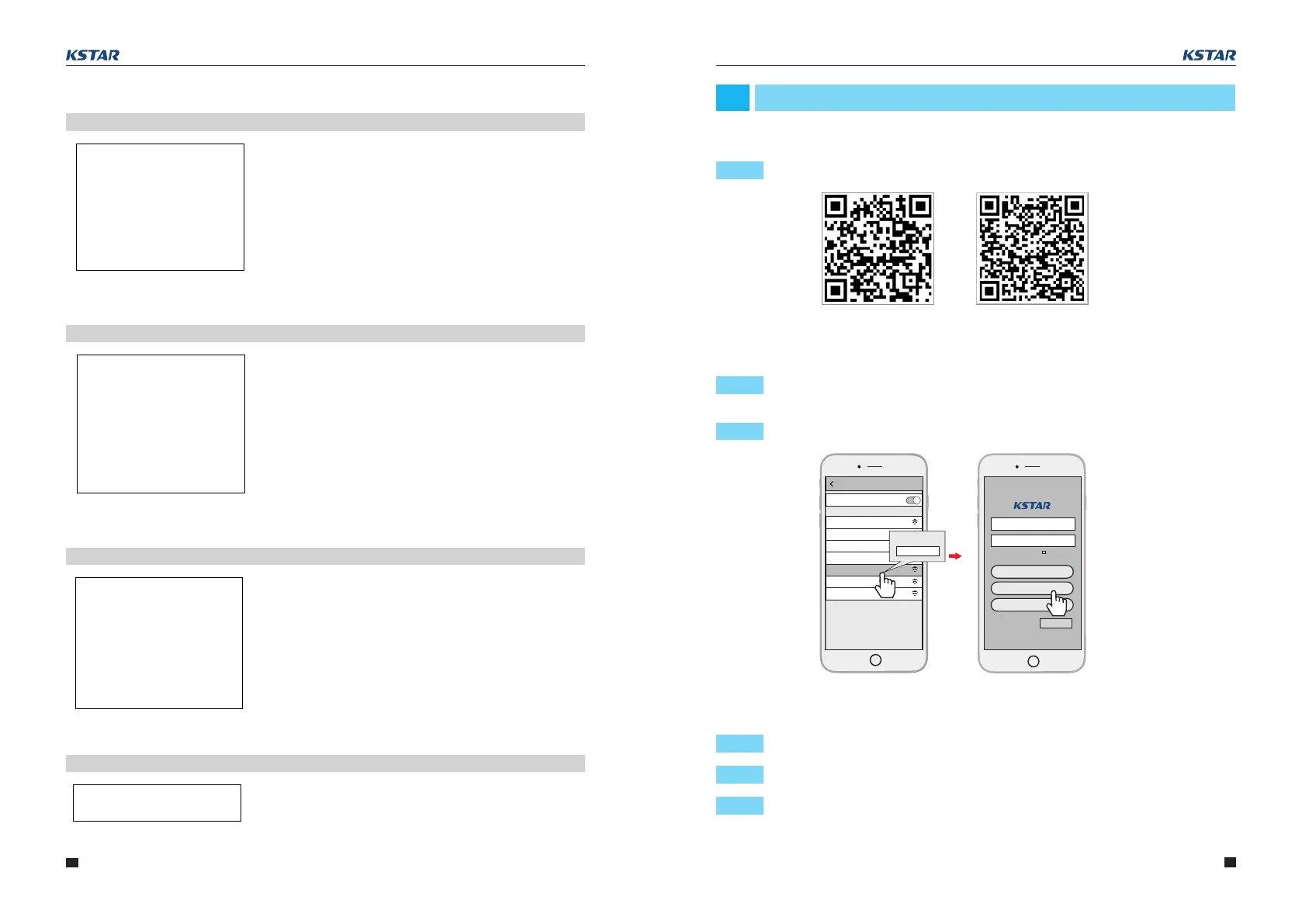
Step 1: Scan the QR Code on the right side and download the APP.
Step 1: Select the same number of Wi-Fi PlugII PN to connect on your phone WLAN.
(Initial Password:12345678)
Step 2: Open the APP, tap the Wi-Fi Config button to enter this page.
Step 1: Then tap the Network Setting button.
Step 2: According to the prompts, type in the information to finish the network setting.
Step 3: After the Wi-Fi PlugII is restarted,reconnect the Wi-Fi which connected
by step 5.1.
5.1 Download APP
5.2 Connect Wi-Fi Datalogger
5.3 Network Setting
--E-MONTH--
PV: 0.0KWH
METER: 0.0KWH
GRID: 0.0KWH
LOAD: 0.0KWH
--E-YEAR--
PV: 0.0KWH
METER: 0.0KWH
GRID: 0.0KWH
LOAD: 0.0KWH
--E-TOTAL-
PV: 0.0KWH
METER: 0.0KWH
GRID: 0.0KWH
LOAD: 0.0KWH
⑤The month
This interface displays power generation for the
month(kWh);
PV power generation;
Electric energy selling to grid;
Electric energy buying from grid;
Power consumption of load;
⑥The year
This interface displays power generation for the
year(kWh);
PV power generation;
Electric energy selling to grid;
Electric energy buying from grid;
Power consumption of load;
⑦ Gross generation
This interface displays gross power generation;
PV power generation;
Electric energy selling to grid;
Electric energy buying from grid;
Power consumption of load;
Please Restart!
Interface
Description
Interface
Description
Interface
Description
Interface
Description
4.6 Restart



 To Next Page