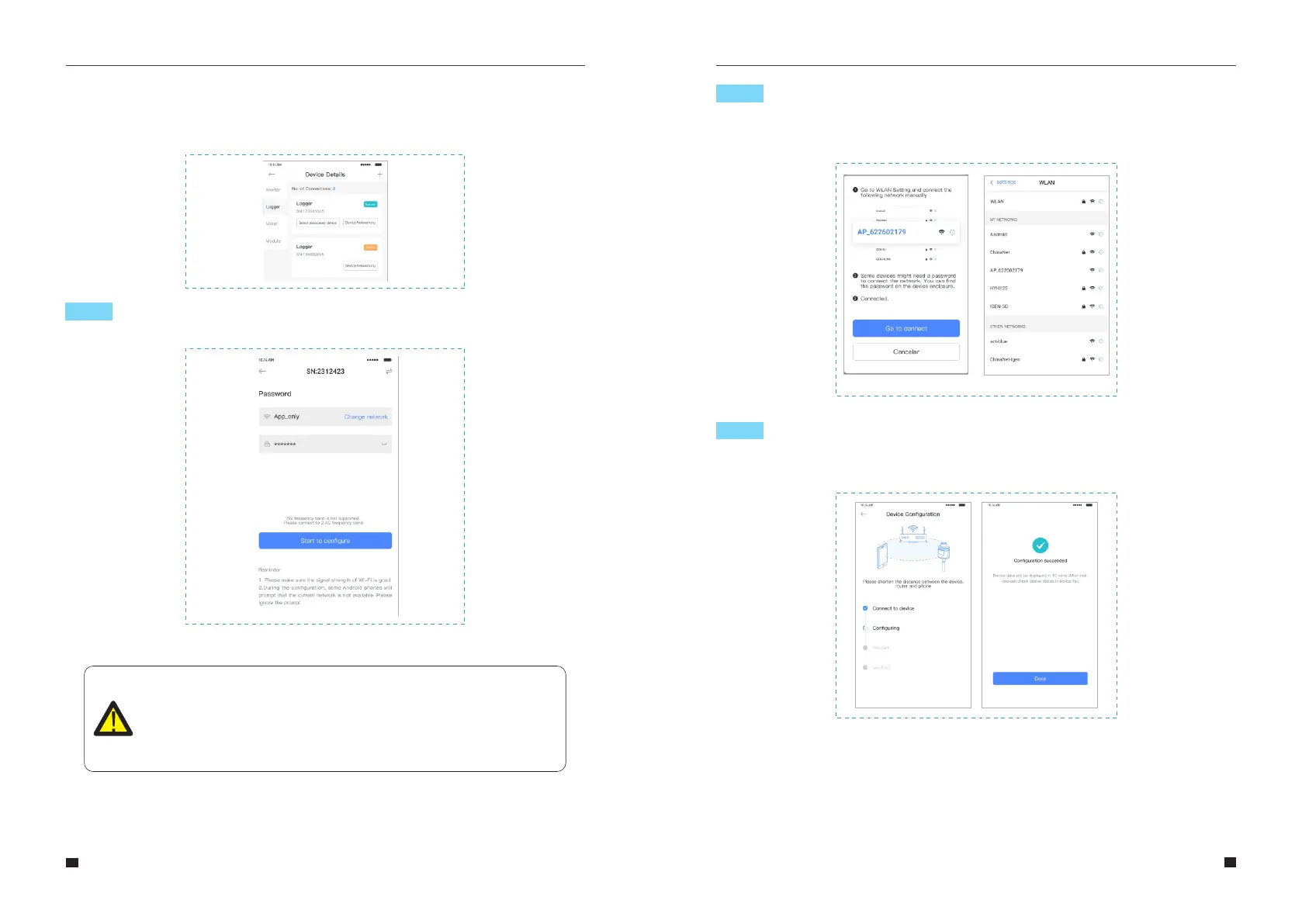
Step 2:Connect to AP network
Click "Go to connect" and find the right "AP_XXXXX" network (XXXXX refers to logger SN).If
the password is required, you can find the password on the logger body.Go back to
SOLARMAN Smart APP, after connecting to AP network.
Step 3:Auto Configuration
Please wait for a while to complete the configuration. Then system will switch to the following
page. Click "Done" to check plant data. (Usually, the data will be updated in 10 mins)
7.4 Network Configuration
After the logger is added, please configure the network to ensure normal operation.Go
to "Plant Details"-"Device List", find the target SN and click "Networking".
Step 1:Confirm Wi-Fi Info
Please make sure your phone has connected to the right WiFi network. And click "Start".
Notice
5G WiFi is not supported .
Special characters (e.g. ,;‘’ =” ” `) in router name and password
are not supported.
If configuration failure occurs, please check the following reason and try it again.
(1)Make sure WLAN is ON.
(2)Make sure WiFi is normal.
(3)Make sure wireless router does not implement the white-black list.
(4)Remove the special characters in Wi-Fi network.
(5)Shorten the distance between the phone and device.
(6)Try to connect to other Wi-Fi.
65
66
User Manual User Manual



 To Next Page