Layout
4-3 KX Driver
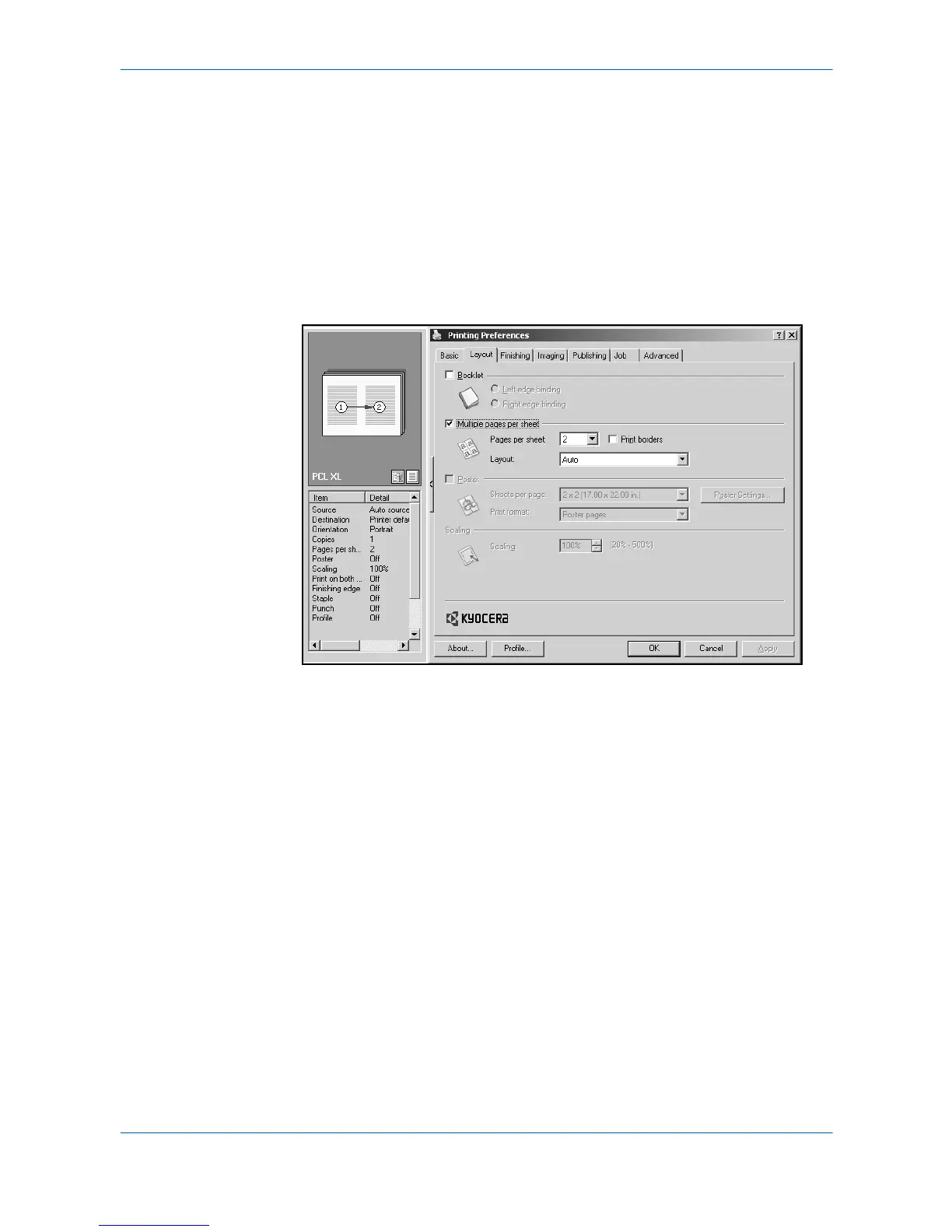
Multiple Pages Per Sheet
You can print multiple pages of a document on a single sheet of paper. Pages can
be arranged in a variety of ways, and a border can be printed around each document
page.
1
From the application’s Print dialog box, open Properties. (Select Print from the File
menu, and select Properties.) 10
2
Click the Layout tab. 11
3
Select Multiple pages per sheet. 12
4
In the Pages per sheet list, select the number of source pages. 13
5
From the Layout list, select the horizontal and vertical direction for the page
layout. 14
Examples:
• If you select six pages per sheet and select Top to bottom and left, the pages
are arranged from the top right corner to the bottom left corner.
• If Auto is selected, the pages are arranged from the top left corner to the bottom
right corner.
6
Select the Print borders check box to print a border around each document page.15
Poster
You can print a document in a larger size than the paper supported for the printing
system. The Poster feature allows you to increase the print size, print portions of the
document on several sheets of paper, then assemble the sheets into a large banner,
up to 25 times larger than the original document.


 To Next Page
 Loading...