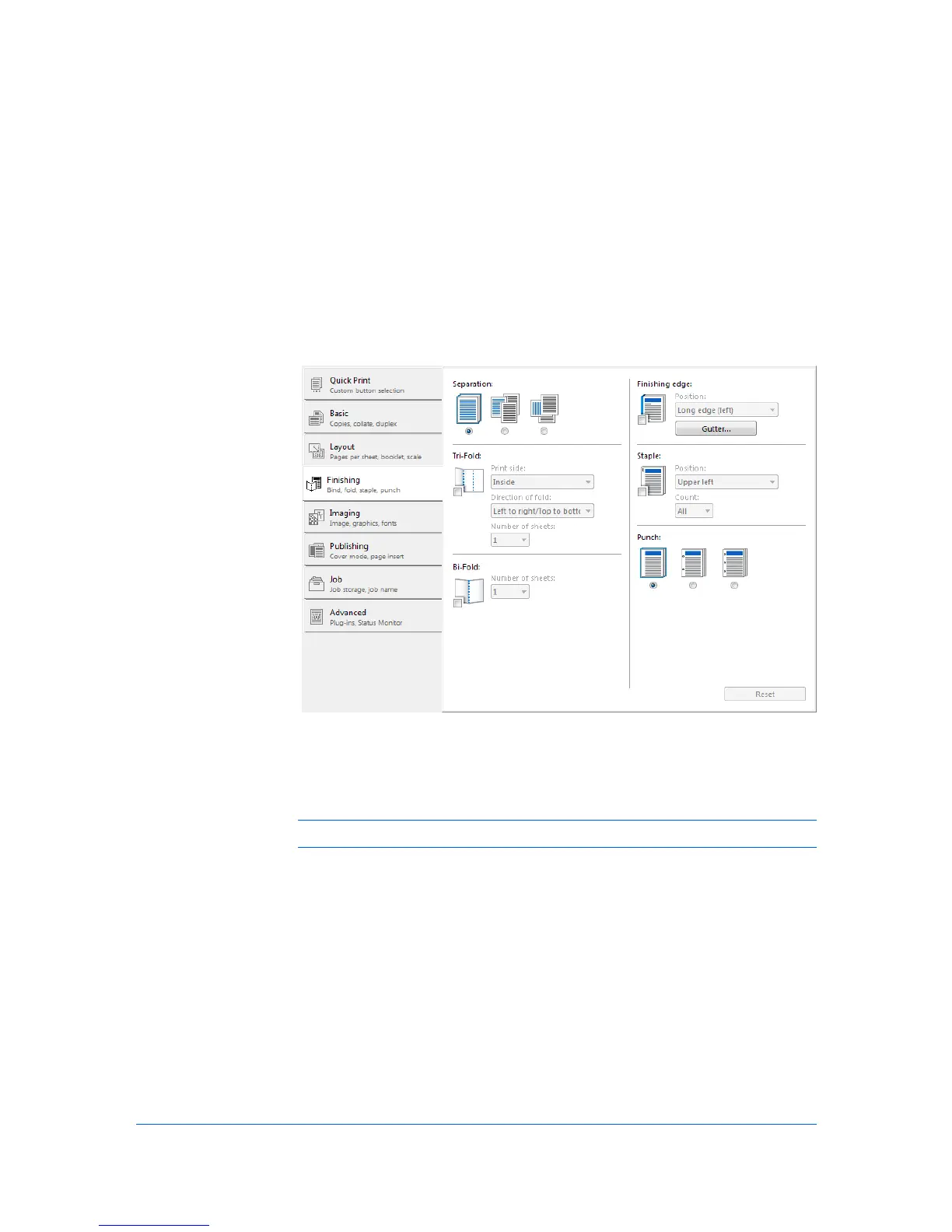
7 Finishing
In the Finishing tab, you can specify document finishing features such as
separating sets of printed jobs, creating bi-fold or tri-fold documents, creating a
gutter, stapling and punching holes.
To return to the original settings, click Reset. The Reset button is available
when accessing the printer driver from the application's Print dialog box.
Separation
The Separation feature stacks print jobs so that one print job can be
distinguished from another.
Note: Staple and Separation features cannot be used together.
Click the Offset jobs icon to physically shift each print job in the output tray. To
ensure consistent offset stacking, all users printing to the same printing system
should select Offset jobs as the default setting.
Click the Rotate copies icon to print each copy of a print job at right angles.
Offset Jobs
The Offset jobs feature physically shifts each print job in the output tray.
To ensure consistent offset stacking, all users printing to the same printing
system should select Offset jobs as the default setting.
The Offset jobs feature requires a finishing device, and it must be selected
under Device options in Device Settings. It does not work with the Staple or
the Finishing edge features.
Printer Driver 7-1




 To Next Page