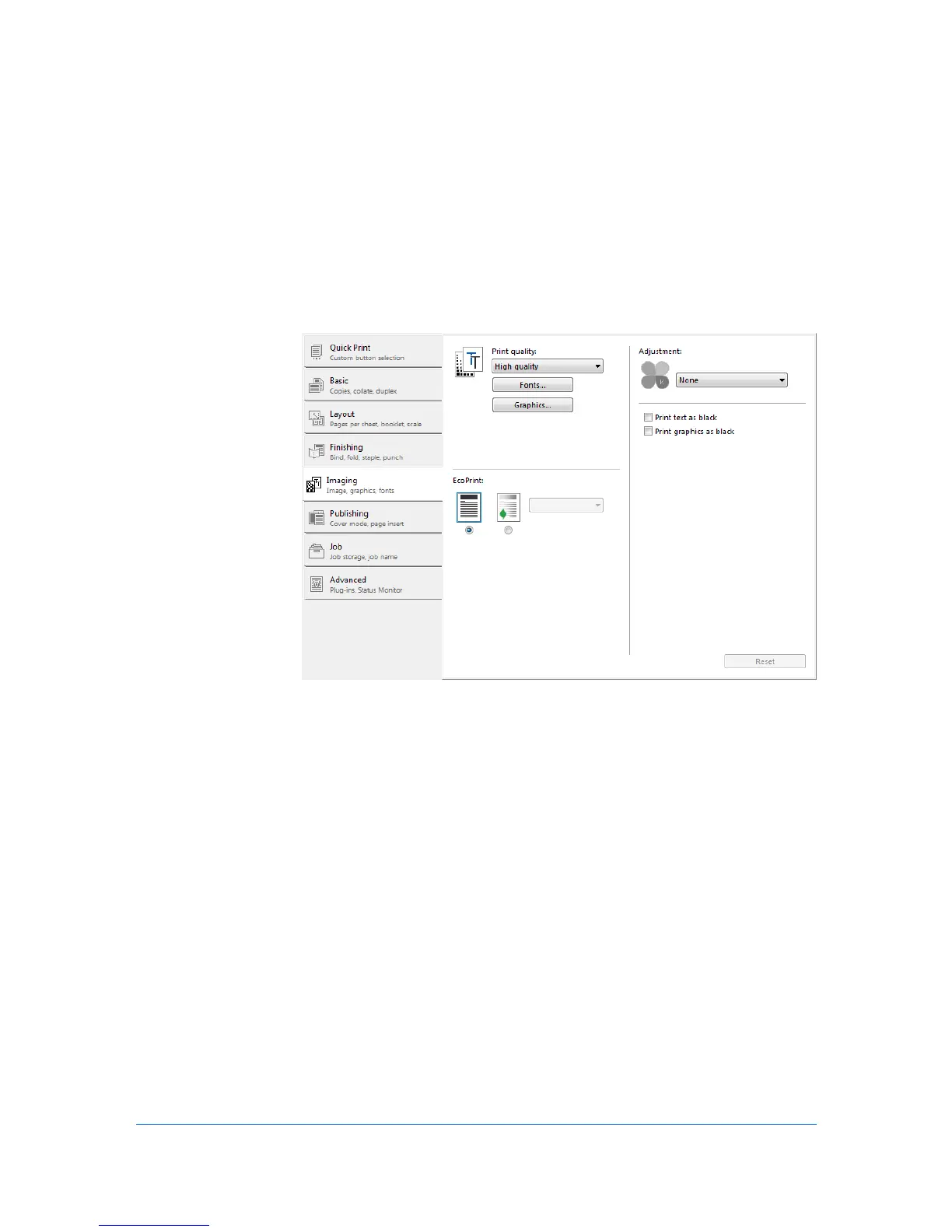
8 Imaging
In the Imaging tab, you can manage print quality and grayscale settings.
To return to the original settings, click Reset. The Reset button is available
when accessing the printer driver from the application's Print dialog box.
Print Quality and Custom Quality
Print quality lets you select between High quality or Custom (Kyocera Image
Refinement).
Selecting Print Quality
In the Imaging tab, select a Print quality from the list.
High quality
Select this setting to print at the highest print quality. If you select High
Quality and then select EcoPrint, the Print quality setting automatically
switches to Custom.
Custom
Kyocera image refinement smooths the edges of text and vector graphics
and can be set to On, or Off. The default setting is On.
Fonts
A computer font is a data file containing a set of glyphs (visual representations
of textual elements), characters, or symbols. Common terms for fonts are:
8-1 User Guide




 To Next Page