EasyManua.ls Logo

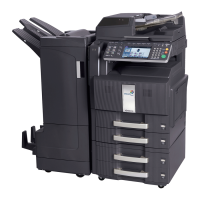
Kyocera TASKalfa 400ci - User Manual

Kyocera TASKalfa 400ci
488 pages
Print Icon
To Next Page IconTo Next Page
Loading...
OPERATION GUIDE
Please read this Operation Guide before using this machine. Keep it close to the machine for easy reference.
250ci/300ci/400ci/500ci
Downloaded From ManualsPrinter.com Manuals

Table of Contents

Other manuals for Kyocera TASKalfa 400ci

Questions and Answers

  • A
    Angelica RussellSep 2, 2025
    How to fix moire patterns on copies from Kyocera All in One Printer?
    • J
      Joseph JohnsonSep 2, 2025
      If your Kyocera All in One Printer's copies have a moire pattern, and the original is a printed photograph, set the image quality to [Print Photo].
  • S
    Steven BurchAug 25, 2025
    Why Kyocera TASKalfa 400ci All in One Printer cannot send document?
    • R
      Robert BakerAug 26, 2025
      If your Kyocera All in One Printer cannot send a document, make sure the modular cord is correctly connected. If a send error is displayed, identify the cause of the error and try sending again. Also, verify whether TX (transmission) restriction is activated and, if so, cancel the TX restriction.
  • D
    Dean PriceNov 23, 2025
    What to do if Kyocera TASKalfa 400ci network connection fails?
    • C
      Calvin DayNov 23, 2025
      If a network connection fails, for example, indicated by a Send Error, try the following: * Connect the network cable and properly set up TCP/IP. * Check folder sharing and access permissions in the Folder Properties dialog box. * Enable the SMB protocol setting. * Verify the host name of the destination computer and the name of the shared folder. * Confirm the domain name and domain user name are correct. * Ensure the login password is correct. * If the domain name specified in [Host Name] differs from the one specified in [Login User Name], delete the domain name and a \\ from the name entered in [Login User Name]. * Also, ensure the time setting is the same between the machine, PC, and the domain server. * To configure Windows Firewall, open Control Panel from the Sta...
  • O
    oscarwoodardSep 8, 2025
    Why Kyocera TASKalfa 400ci All in One Printer cannot use the remote switching function?
    • M
      Matthew GriffinSep 8, 2025
      If you cannot use the remote switching function, consider these potential causes: * If a pulse line is used, some phones may transmit tone signals using buttons. Refer to the operation manual of your phone set. * Verify the remote switching number is correct. The default number is 55.
  • M
    Matthew GreenSep 14, 2025
    What to do if Kyocera TASKalfa 400ci All in One Printer displays 'Cannot execute this job'?
    • A
      ahernandezSep 14, 2025
      If your Kyocera All in One Printer displays 'Cannot execute this job', it means fax transmission is prohibited by Job Accounting. No further operation is possible. Press [End] to cancel the job. Check the setting for Job Accounting.
  • C
    courtney96Sep 5, 2025
    Why is Kyocera Printer Accessories frequently jamming?
    • G
      Gregory BanksSep 5, 2025
      Frequent jamming in the conveyor or inner tray of Kyocera Printer Accessories may be due to excessively curled paper. If output pages are curled, adjust curling referring to page 31.
  • E
    Ernest WhiteAug 30, 2025
    Why are documents printed improperly from my Kyocera TASKalfa 400ci All in One Printer?
    • R
      rachel33Aug 30, 2025
      If documents are printed improperly from your Kyocera All in One Printer, check that the printer driver and application software settings are set properly on your PC.
  • M
    moonroySep 16, 2025
    What to do if Kyocera All in One Printer says 'Check the document processor'?
    • T
      teresajohnsonSep 17, 2025
      If your Kyocera All in One Printer displays the message 'Check the document processor': * The document processor might be open. Close it. * The top cover of the document processor might be open. Close it.
  • A
    Alexis HarrisSep 12, 2025
    What to do if Kyocera TASKalfa 400ci All in One Printer displays 'FAX box limit exceeded'?
    • M
      Maureen LeonSep 12, 2025
      If the FAX Box limit is exceeded on your Kyocera All in One Printer, it means the FAX Box capacity is full with document data. Press [End] to cancel the job. To proceed, either print or delete the data in the FAX Box, and then try the job again.
  • M
    Miguel WhiteAug 27, 2025
    Why does my Kyocera All in One Printer often jam?
    • B
      brian75Aug 27, 2025
      Frequent paper jams in your Kyocera All in One Printer could be due to: * Incorrectly loaded paper. Load the paper correctly. * Unsupported or poor condition paper. Remove the paper, turn it over, and reload it. * Curled, folded, or wrinkled paper. Replace the paper with new paper. * Loose scraps or jammed paper in the machine. Remove any jammed paper.

Kyocera TASKalfa 400ci Specifications

General IconGeneral
BrandKyocera
ModelTASKalfa 400ci
CategoryAll in One Printer
LanguageEnglish

Related product manuals