12
PAUSE - Timeshift Recording
If your viewing is interrupted or you need to stop
viewing but don’t want to miss the action:
1. Press PAUSE
.
2. The time elapsed bar will now be visible on
the screen and the programme will freeze.
3. Press the PLAY
; button in order to resume
viewing from the pause point. The receiver will
continue to record the same channel while
you watch the previously broadcast program.
During timeshift playback, press the EXIT
button to hide the information bar. Press the
PAUSE /i INFO key again to restore the bar.
To scroll through currently stored timeshift
recordings:
1. Press PAUSE
to switch on timeshift mode.
2. Use the Fast forward and Rewind keys to
navigate through the timeshift buffer, press
PLAY to view.
4. Use the
/
keys to move the playback start
marker position and press OK to play.
To switch off the Timeshift mode press the STOP or
EXIT key.
Please Note: if a hard drive is not connected to
the USB port or timeshift is not enabled, pressing
the PAUSE
key, will only temporarily pause the
image and there will be no recording.
Please Note: The DVR CONFIGURATION submenu
lets you configure a partition for Timeshift
recording on a suitable drive when it is connected
to one of the USB sockets (see page 10).
Playing Back Recordings
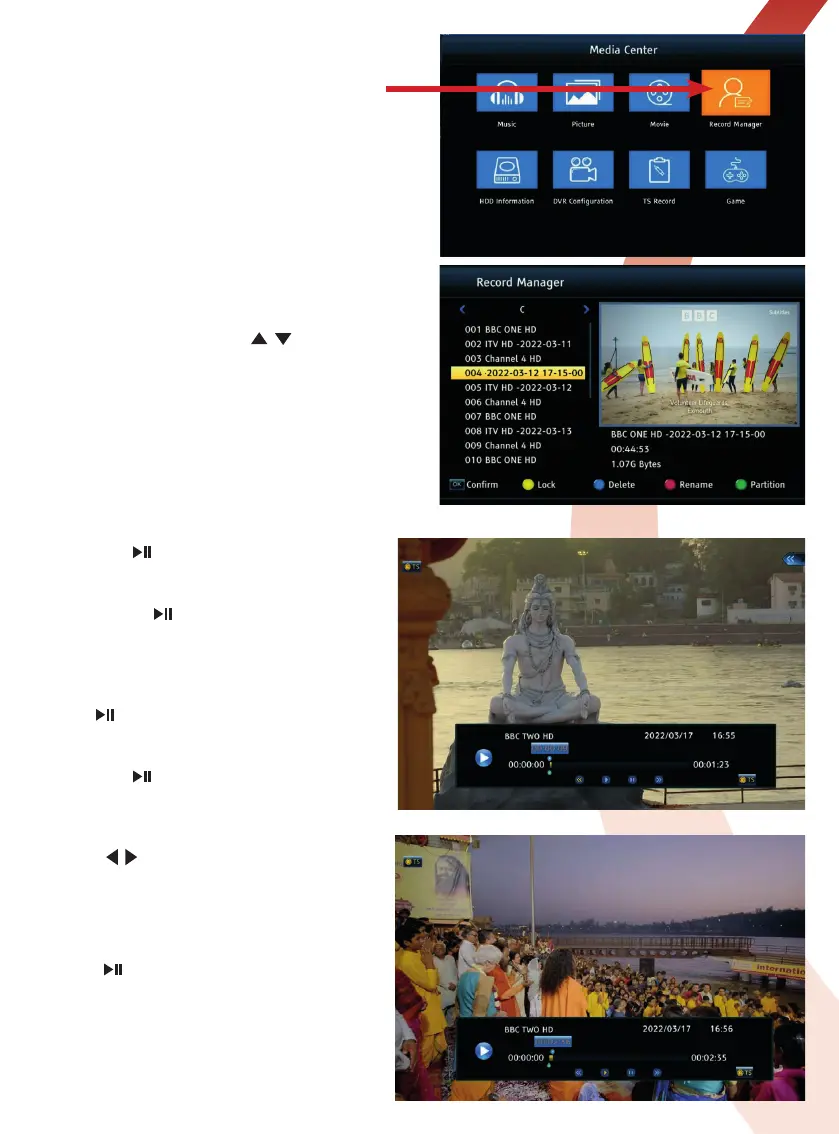
To playback recordings open the Record Manager
submenu in the Media Centre menu available
recordings are listed.
Editing Recordings
In the Record Manager use the / keys to select
a recording press OK to play. You can also Lock,
Delete and Rename a recording.
If your hard drive has more than one partition you can
also change partition.


 To Next Page