9
Channel List
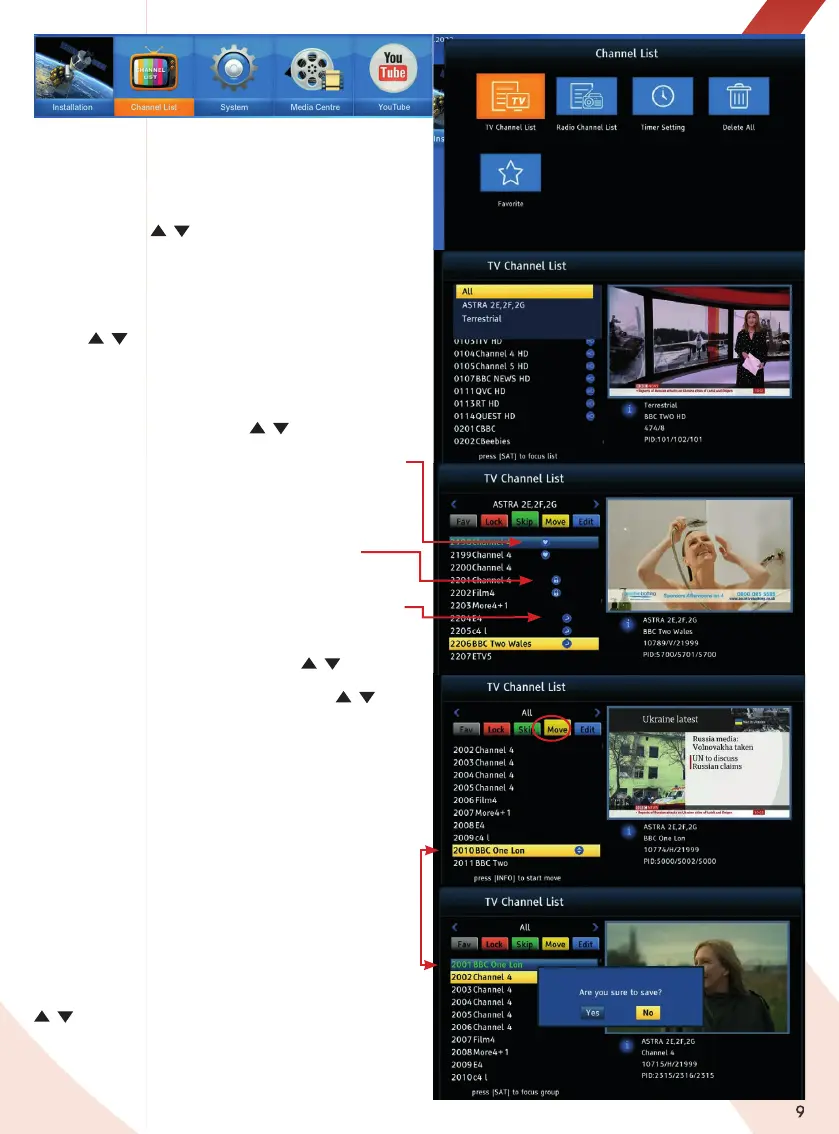
In the Main menu select Channel List & press OK.
Press OK again to enter the TV Channel List submenu.
TV Channel List
Press the SAT key / key to scroll to < All > press OK
and select from All, a satellite list (by name) / Terrestrial
channel list and all the Favourite categories with saved
channels.
Editing the list of TV channels.
Use the / keys to go to a channel then press the
FAV key or one of the colour keys on the remote control
to mark the channel.
1- FAV: Highlight a TV channel press the FAV key to
open the Favourites list, use the
/ keys to select
a category and press OK twice. Press EXIT to save.
Favourite selections are marked with a heart symbol.
2- LOCK: Press the RED key to lock a selected channel.
The LOCK option is password protected, enter the
default password “0000”. Press EXIT to save. Locked
selections are marked with a padlock symbol.
3- SKIP: Press the GREEN key to select a TV channel
you want to Skip it will be marked with a return arrow
symbol. Exit to save selections.
4- MOVE: Press the YELLOW key, use the
/ keys to
move the highlight bar to the TV channel(s) you want
to move and press OK to mark, then use the /
keys to move the highlight bar to the position you want
move the channel(s) to and press the INFO key. Finally,
press the EXIT key twice to exit the TV channel list menu
and save the new list order.
5- Edit (Sort/Edit Name/Delete):
To SORT press the BLUE key first then press the RED key
to see sort options select the option you want and
press OK, press the EXIT key to save new list order.
To EDIT a selected channel name, press the BLUE
key, now then the GREEN key, follow the on screen
instructions to rename the channel, press the YELLOW
key then the EXIT key to save.
To DELETE a channel, press the BLUE key, use the
/ keys to select a channel, press the BLUE key
again then press the EXIT key to complete the
deletion and save the change.


 To Next Page