19
2. Enter address and click the download link of the application you want to download to
the device.
3. After downloading, click and hold the download file (in download record interface), →
Click Open → Install.
Uninstalling application
You can uninstall any installed Android application conveniently.
1. Click Menu → Settings → Applications → Manage applications.
2. Click the application you want to uninstall, → Uninstall.
3. Click Yes to confirm to uninstall.
16. Connecting to a PC
1. Connect the device to a PC, then this device can be used as a mobile storage device.
When using a USB cable to connect to PC, connect one end of the cable to the USB OTG
port of the device, and the other end to USB port of PC.
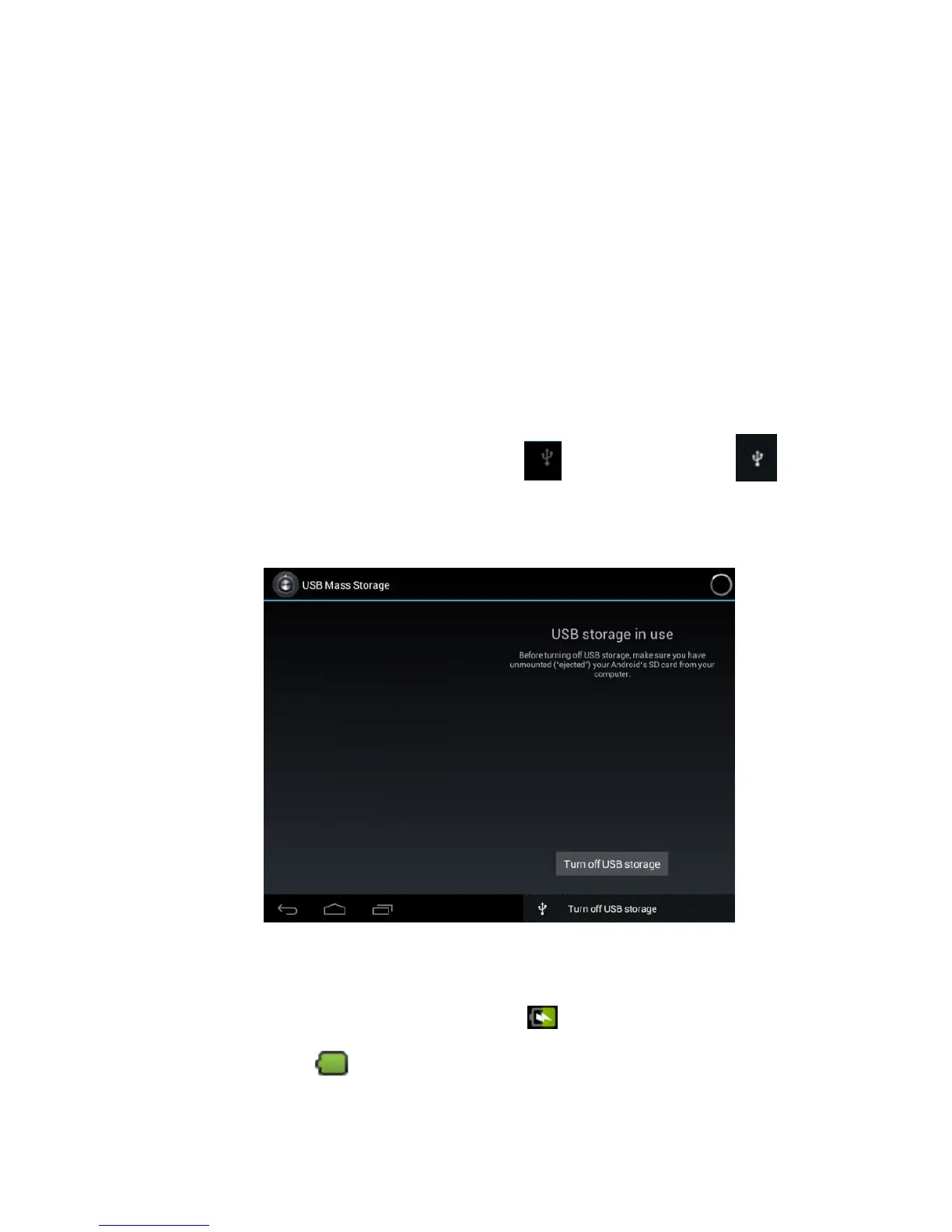
2. After connection, the device will prompt icon , and click it and select ,
then select Enable USB device, then you can save data to the device via PC, as shown
in the following picture:
Charging
Connect one end of the power adaptor to supply socket, and the other end to the
power socket of the device for charging.
During charging, the icon of battery will be , and when charging completes,
the icon will be .
You can still use the device while charging, but this will prolong the charging
time.


 To Next Page