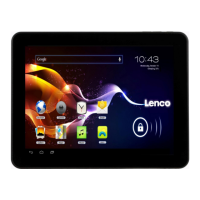
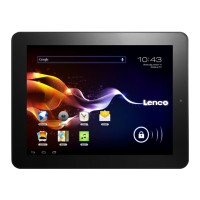
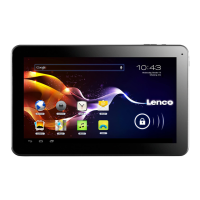
1: View all applications
2: Shortcut to voice search
3: Google search
4: Return
5: Return to desktop
6: Select multitask
7: Volume Up
8: Volume Down
9: USB Connection
11: Time
12: 3G/WIFI status
13: Battery indicator
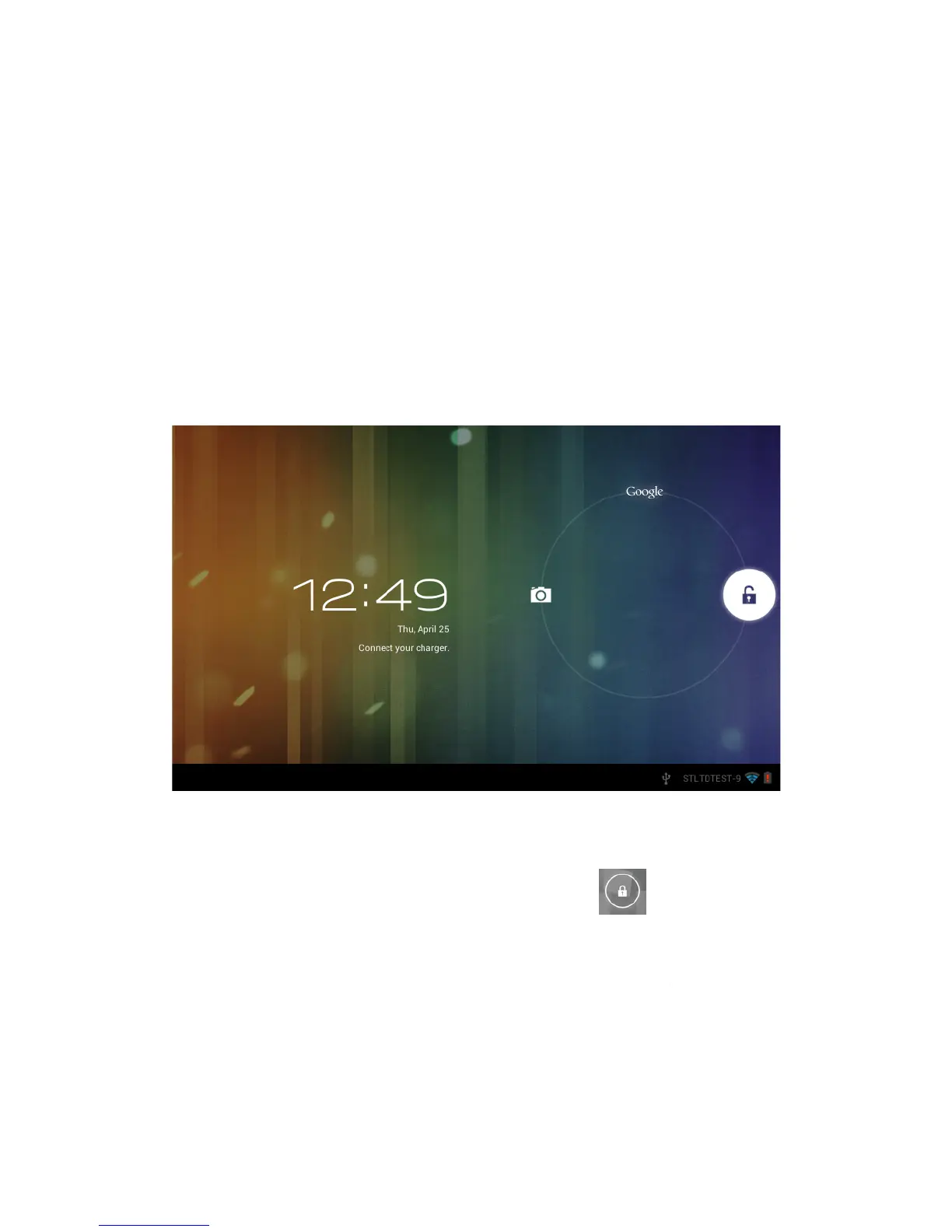
Locked screen
If there is no operation for a long time, or when you press the power key, the
this mode, and if you press the button key, it will wake up and enter nap mode, as shown
in the picture. In this mode, click and hold
positions will appear as sho
position, Unlock icon is at B position, and Google icon is at C position. The system will
prompt you the currently activated path, as shown in the picture, the ripples at B position
ed path. You can click and drag the Lock/unlock icon to B position to
unlock the screen, to A position to activate the camera, or to C position to activate Google
If there is no operation for a long time, or when you press the power key, the
modes, one is sleep mode, the screen is off in
this mode, and if you press the button key, it will wake up and enter nap mode, as shown
in the picture. In this mode, click and hold
positions will appear as sho
wn in the picture. In this interface, Camera icon is at A
position, Unlock icon is at B position, and Google icon is at C position. The system will
prompt you the currently activated path, as shown in the picture, the ripples at B position
ed path. You can click and drag the Lock/unlock icon to B position to
unlock the screen, to A position to activate the camera, or to C position to activate Google
If there is no operation for a long time, or when you press the power key, the
modes, one is sleep mode, the screen is off in
this mode, and if you press the button key, it will wake up and enter nap mode, as shown
wn in the picture. In this interface, Camera icon is at A
position, Unlock icon is at B position, and Google icon is at C position. The system will
prompt you the currently activated path, as shown in the picture, the ripples at B position
ed path. You can click and drag the Lock/unlock icon to B position to
unlock the screen, to A position to activate the camera, or to C position to activate Google


 To Next Page