7
4. CORE Service App Menu Selection
Overview
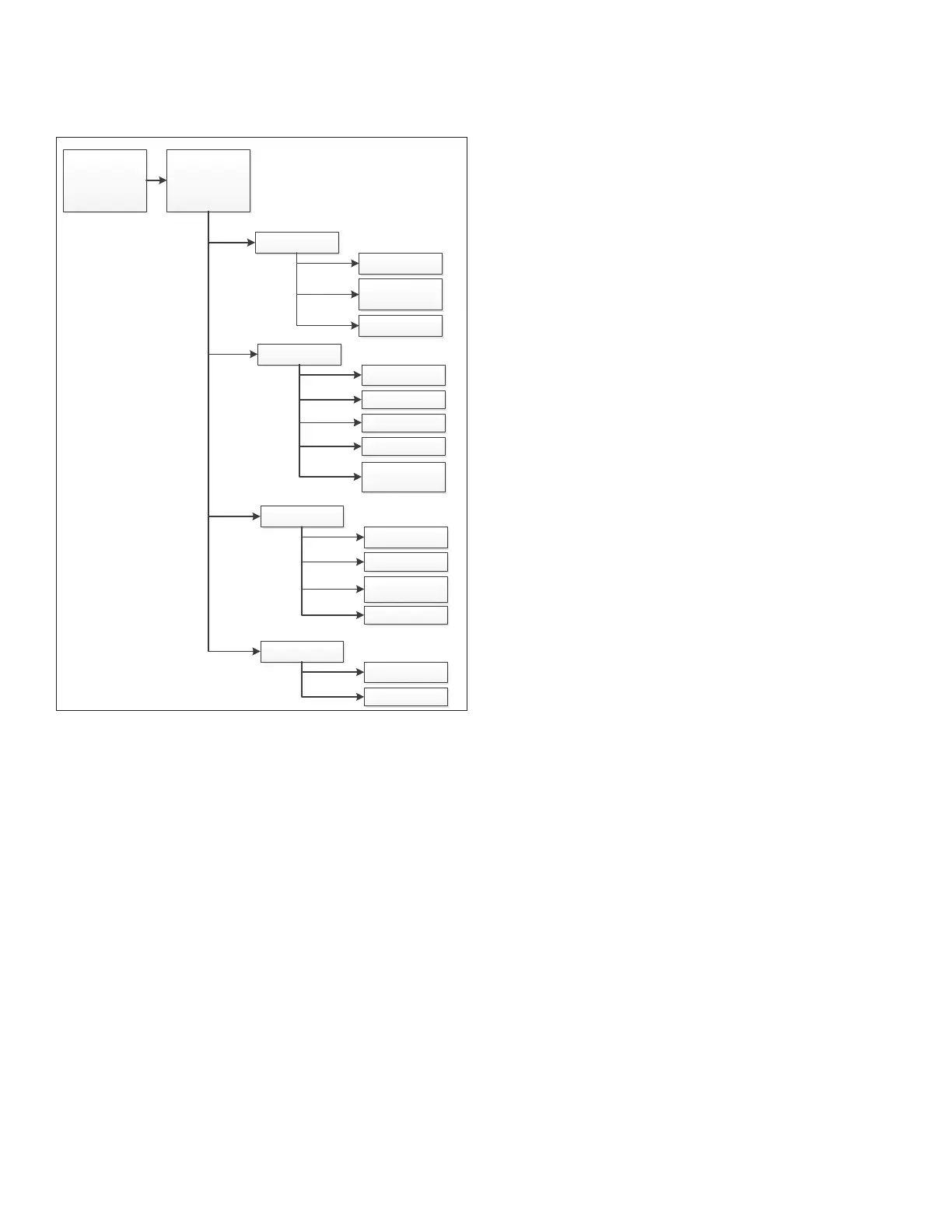
Refer to “9. CORE Service App RTU Menu” on page 8
for details for Setup, Data, Service and Settings options.
MENU
_____
_____
_____
RTU MENU
SETUP
INSTALL
NETWORK
INTEGRATION
TEST AND BALANCE
DATA
ALARM HISTORY
DATA TRENDING
FACTORY
RUNTIMES
SYSTEM DATA /
SENSORS / OUTPUTS
SERVICE
COMPONENT TEST
REPORT
ADVANCED
CONTROL
FIRMWARE UPDATE
SETTINGS
RTU OPTION
INSTALL
5. Pairing CORE Service App to CORE Unit
Controller
• The mobile application is compatible with the CORE
Unit Controller.
• The mobile application can discover the CORE Unit
Controller if within 50 feet of the mobile device being
used.
• The mobile application will list the units by signal
strength.
• The unit friendly name is displayed.
• Select the desire unit from the discovery list. The four
digit code desired on the unit will show the code listed in
the discovery list.
• Once the unit has been selected, connection should be
established to your device within 10 seconds.
• Information displayed once pairing is completed will be
RTUname,modelnumber,serialnumberandrmware
version.
6. System Overview - Room Sensor Mode
a. The system overview shall put emphasis on the zone
temperature and RH.
• The zone temperature / rh indicates a “_ _” if out
of range.
• TheRHvaluewillnotappearifnotcongured.
b. The system overview in room sensor mode places
emphasis on the current operating modes.
c. The system overview indicates all active operating modes
with a priority on heating and cooling associated modes.
NOTE: If dehumidication mode is active, this is displayed,
and not cooling for example,
d. The system overview lists the following parameters at the
top of the screen:
• Return Temperature
• Discharge Temperature
• Setpoints (Heating and Cooling)
• Network Status
• The system overview shall also indicate:
• Occupancy
• RH setpoint (if applicable)
• Outdoor Air Temperature
• Damper Position (if equipped)
• Active Alerts
e. Additional Settings
• PreInstall
• Test
• Smoke
• Off on Alarm
• Delay up to 5 minutes
• Delay up to 20 seconds
• Start up
• Low Ambient Lockout
• Morning Warm-Up
• Pre-Cool
• Free Cooling
• Cooling
• Heating
• Dehumidication
• Fresh Air Cooling
• Fresh Air Heating
• Cool + Max Open Economizer
• Cool + Modulate Economizer
• Compressor Load Shedding
• Blower On - OAS
• Blower On
• No Demand - OAS



 To Next Page