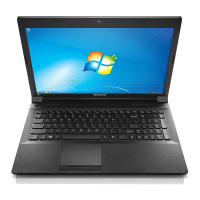
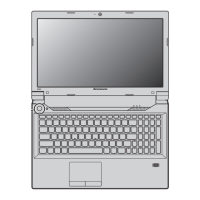
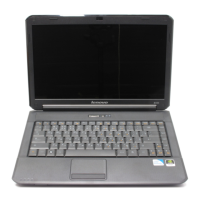
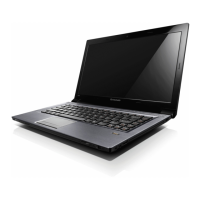
1Integratedcamera
Usethecameratotakepicturesorholdavideoconference.Fordetails,see“Usingtheintegratedcamera”
napágina33.
2Built-inmicrophone
Thebuilt-inmicrophonecapturesoundandvoicewhenusedwithanapplicationprogramcapableof
handlingaudio.
3Systemstatusindicator
Thesystemstatusindicatorshowsthecurrentstatusofyourcomputer.Formoreinformation,referto
“Systemstatusindicators”napágina6
.
4Mediacardreaderslot
Yourcomputerhasamediacardreaderslot.Formoreinformationaboutthesupportedcards,see“Usinga
ashmediacard”napágina34.
5Touchpad
Moveyourngertipacrossthetouchpadtomovethepointer.Thetouchpadbuttonsprovidefunctions
similartothoseofamouseanditsbuttons.Formoreinformation,referto“Usingthetouchpad”napágina21.
6Powerbutton
Usethepowerbuttontoturnonthecomputer.
Toturnoffthecomputer,usetheStartmenushutdownoptionontheWindows
®
7operatingsystem.For
theWindows8operatingsystem,movethecursortothebottomrightcornerofthescreentobringupthe
charms.ThenclickSettings➙Power➙Shutdown.
Ifyourcomputerstopsrespondingandyoucannotturnitoff,pressandholdthepowerbuttonforfour
secondsormore.Ifthecomputerstillisnotresponding,removetheacpoweradapterandthebattery
toresetthecomputer.
Youalsocanprogramthepowerbuttonsothatbypressingthepowerbuttonyoucanshutdownthe
computerorputitintosleeporhibernationmode.Toachievethis,youneedtochangeyourpowerplan
settings.Toaccesspowerplansettings,dothefollowing:
•ForWindows7:StartthePowerManagerprogramandthenclickthePowerPlantab.Forinstructionson
howtostartthePowerManagerprogram,see“AccessingLenovoprogramsontheWindows7operating
system”napágina11.
•ForWindows8:ClickthebatterystatusiconintheWindowsnoticationarea,andthenclickMorepower
options➙Choosewhatthepowerbuttonsdo.
2UserGuide



 To Next Page