EasyManua.ls Logo

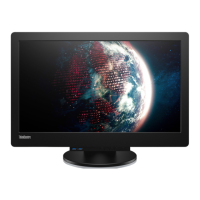
Lenovo ThinkCentre Tiny-in-One 24 - User Manual

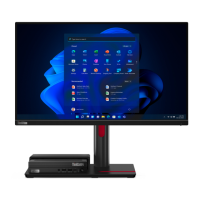
Lenovo ThinkCentre Tiny-in-One 24
40 pages
Print Icon
To Next Page IconTo Next Page
Loading...
ThinkCentre Tiny-in-One 24
User Guide
Machine Type: 10LL

Questions and Answers

  • C
    Carl HarrisAug 13, 2025
    How to improve unacceptable image quality on Lenovo ThinkCentre Tiny-in-One 24 Desktop?
    • A
      Austin Moss PhDAug 13, 2025
      If the image quality on your Lenovo Desktop is unacceptable, make sure the video signal cable is firmly plugged into both the system and the monitor. You can also try selecting another color setting from the OSD menu and perform automatic image setup.
  • T
    Thomas ClarkAug 17, 2025
    How to fix blurry image on Lenovo Desktop?
    • B
      belindapearsonAug 17, 2025
      To fix fuzzy lines or a blurry image on your Lenovo Desktop, adjust the resolution settings on your system to match the native resolution for this monitor: 1920x1080 at 60 Hz. Perform automatic image setup. If automatic image setup does not help, perform manual image setup. When working in the native resolution, you may find additional improvements by adjusting the Dots Per Inch (DPI) setting on your system.
  • L
    leecynthiaAug 21, 2025
    What to do if Lenovo Desktop screen is blank?
    • W
      wthomasAug 21, 2025
      If your Lenovo Desktop screen is blank and the power indicator is steady amber or flashing green, press any key on the keyboard or move the mouse to restore operation, as the monitor might be in Standby/Suspend mode. Also, check the Power options settings on your computer.
  • P
    Patricia VazquezAug 25, 2025
    What to do if Lenovo ThinkCentre Tiny-in-One 24 Desktop power indicator is not lit?
    • K
      Kevin BenjaminAug 25, 2025
      If the power indicator on your Lenovo Desktop isn't lit and there's no image on the screen, ensure the power cord is properly connected and that the outlet has power. Also, power on the monitor. You might want to try using another power cord or a different electrical outlet to rule out those issues.
  • N
    Natasha MichaelAug 28, 2025
    Why Lenovo ThinkCentre Tiny-in-One 24 power indicator is green but no image?
    • C
      Charles SandersAug 28, 2025
      If the power indicator on your Lenovo Desktop is green but there is no image on the screen, ensure the video cable is properly connected to the system. Also, check the monitor brightness and contrast settings in the OSD menu and adjust them if they are at the lowest setting.
  • B
    Brian BarkerSep 1, 2025
    How to fix 'Out of Range' error on Lenovo ThinkCentre Tiny-in-One 24?
    • E
      Edward MartinezSep 1, 2025
      If your Lenovo Desktop shows 'Out of Range' on the screen, and the power indicator is flashing green, it means the system is set to a display mode not supported by the monitor. If you replaced an old monitor, reconnect it and adjust the display mode to within the specified range for your new monitor. If using a Windows® system, restart the system in safe mode, then select a supported display mode for your computer. If these options do not work, contact the Customer Support Centre.
  • P
    paul90Sep 4, 2025
    How to solve image issues on Lenovo ThinkCentre Tiny-in-One 24 Desktop in dual mode?
    • J
      Jacob PhillipsSep 4, 2025
      If the image is not acceptable when switching your Lenovo Desktop to dual mode, use ThinkVision® Duo software to optimize the dual screen operation. Also, adjust graphic card resolution manually.
  • C
    Carolyn StricklandSep 8, 2025
    Why are pixels discolored on Lenovo Desktop screen?
    • L
      lori65Sep 8, 2025
      If one or more pixels appear discolored on your Lenovo Desktop screen, this is a characteristic of the LCD technology and is not an LCD defect. If there are more than five pixels missing, contact the Customer Support Centre.

Summary

Safety Information

General Safety Guidelines

Provides overarching safety instructions for monitor use and installation.

Getting Started

Setting Up Your Monitor

Guides users through the process of assembling and setting up the monitor.

Turning On Your Monitor and Computer

Explains how to power on the monitor and connected computer systems.

Adjusting and Using Your Monitor

Safety and Maintenance Guidelines

Covers important safety, maintenance, and cleaning procedures for the monitor.

Adjusting the Monitor Stand

Provides instructions on adjusting monitor tilt, swivel, and height for ergonomic comfort.

Monitor Image Adjustment Controls

Details on adjusting monitor image using user controls and the On Screen Display (OSD) menu.

Caring for Your Monitor

Provides guidelines on how to properly care for and clean the monitor.

Reference Information

Disassembling Your Monitor

Step-by-step instructions for safely disassembling the monitor components.

Troubleshooting Common Issues

Provides solutions for common problems encountered with the monitor.

Service and Support

Lenovo ThinkCentre Tiny-in-One 24 Specifications

General IconGeneral
3DNo
Color gamut72 %
Pixel pitch0.2745 x 0.2745 mm
Screen shapeFlat
Display surfaceMatt
Display diagonal23.8 \
Native aspect ratio16:9
Viewable size diagonal604.7 mm
Viewable size, vertical313 mm
Contrast ratio (typical)1000:1
Display number of colors-
Viewable size, horizontal535 mm
Display brightness (typical)250 cd/m²
Supported graphics resolutions640 x 350, 640 x 480 (VGA), 720 x 400, 1024 x 768 (XGA), 1152 x 864 (XGA+), 1280 x 1024 (SXGA), 1280 x 800 (WXGA), 1280 x 800, 1366 x 768, 1600 x 1200 (UXGA), 1680 x 1050 (WSXGA+), 1920 x 1080 (HD 1080)
On/off switchYes
AC input voltage100 - 240 V
AC input frequency50 - 60 Hz
Power consumption (max)35 W
Power consumption (typical)16.7 W
CertificationChina RoHS, China Energy Efficiency Standard Tier 1, RoHS EU, RoHS (Turkey), EPEAT Gold, Energy Star 7.0, RoHS Ukraine
Product colorBlack
Market positioningBusiness
RMS rated power1.5 W
Number of speakers1
VGA (D-Sub) ports quantity0
USB Type-A downstream ports quantity2
Tilt angle range-5 - 35 °
Number of OSD languages8
Panel mounting interface100 x 100 mm
Operating temperature (T-T)0 - 40 °C
Operating relative humidity (H-H)8 - 80 %
Sustainability certificatesEPEAT Gold, ENERGY STAR
Weight and Dimensions IconWeight and Dimensions
Depth (with stand)251.4 mm
Height (with stand)385.08 mm
Weight (with stand)5570 g
Depth (without stand)68.2 mm
Width (without stand)539.6 mm
Height (without stand)346.45 mm
Weight (without stand)- g

Related product manuals